SIPNEX application is how you send your company to SIPNEX for review. Open it from Setup → SIPNEX application, fill it in once, and submit. The same page then shows the status, the reference number, and a preview of what you sent.
Only a company owner or an admin can submit. Anyone else sees Ask an account admin. The first section comes from your business profile, so finish Settings → Business Detail before you start.
✍️ Fill in the application#
The form has five sections. Work through them in order, then submit once.
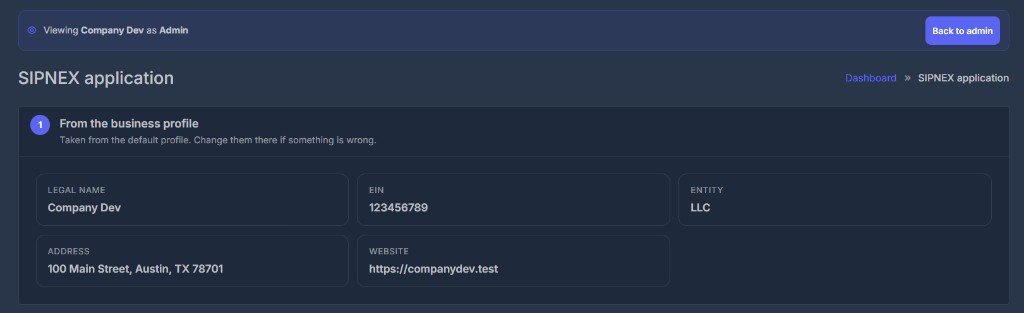
1. Company details from your business profile
Legal name, EIN, entity, address, and website are copied from your business profile. Check them here. To change them, update the business profile — this form does not ask for them again.
2. Company and signer
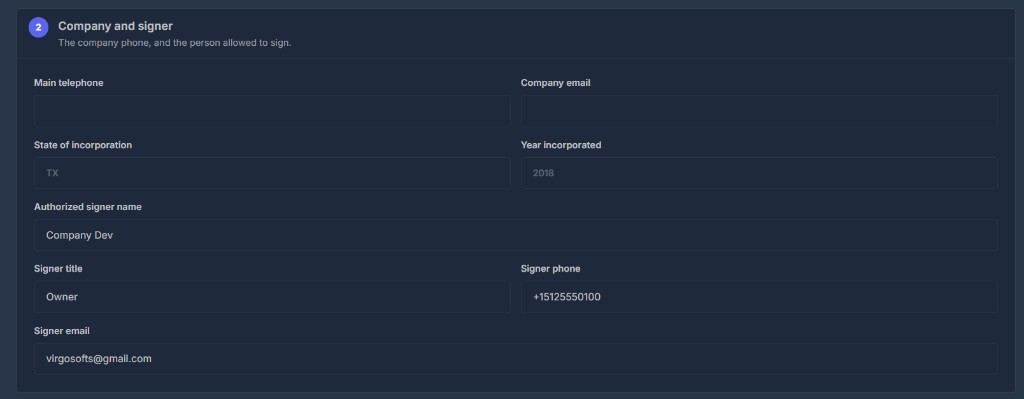
Add the main telephone, company email, state of incorporation, and year of incorporation. Then enter the person who will sign: name, title, phone, and email.
3. How the numbers will be used
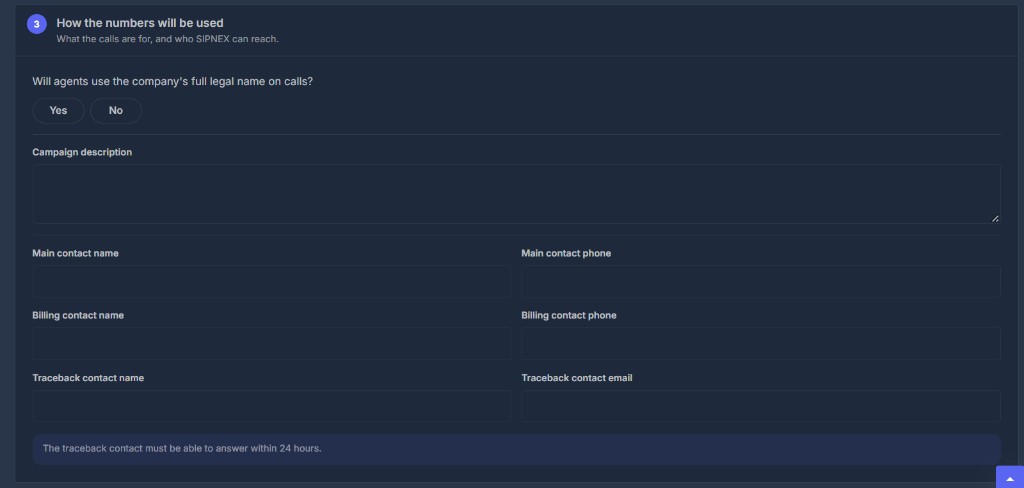
Say whether the legal name is spoken on calls, and describe the campaign. Add the main contact, the billing contact, and the traceback contact. The traceback contact must be able to answer within 24 hours.
4. Compliance
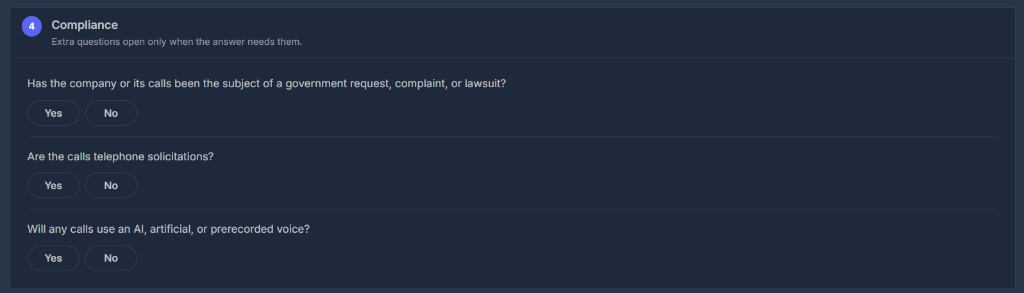
Answer the three questions: legal action, telephone solicitations, and AI or a prerecorded voice. Extra questions open only when an answer needs them.
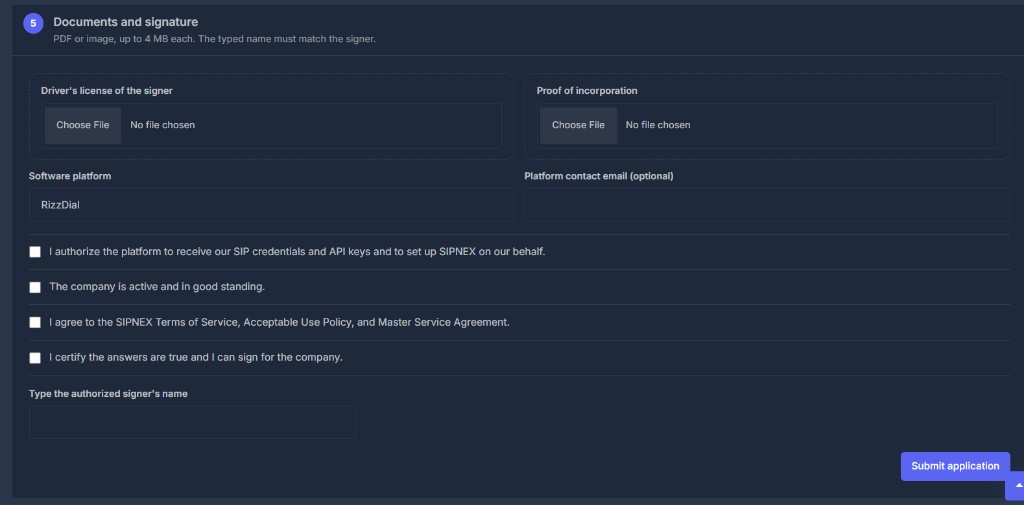
5. Documents and signature
Upload a driver's license and proof of incorporation. Each file must be a PDF or an image, and 4 MB or smaller. If you answered yes to telephone solicitations or to AI or a prerecorded voice, a consent document is required too.
The platform is RizzDial. If a platform name is filled in, tick Authorize platform. Then tick good standing, the terms, and the certification. The signature name must match the signer name exactly. Click Submit application.
✅ After you submit#
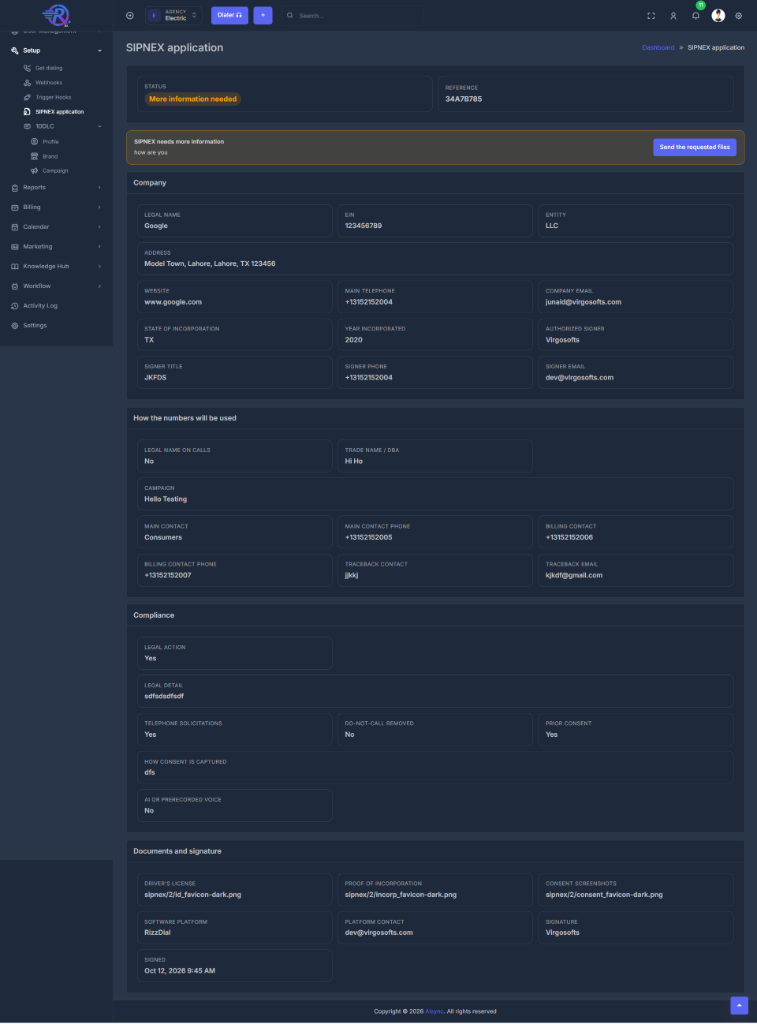
The form is replaced by a preview. You will see the status and a reference number. Keep that reference — it is how this application is tracked. Do not start a second application for the same company.
📨 When SIPNEX asks for more#
If the status is More information needed, an alert shows the note from SIPNEX. Click Send the requested files and upload only the files they asked for (for example an EIN letter or another document). Those files are added to the same application. The reference number does not change.
| What you see | What it means |
|---|---|
| More information needed | SIPNEX is waiting on the files named in the alert |
| In review | SIPNEX has the application and is reviewing it |
| Approved or Live | The review is finished |
| Declined | SIPNEX did not approve this application |
🤖 Set it up with your AI assistant (MCP)#
With MCP connected, you can check or send the application by chat. Your assistant shows a preview and waits for you to say yes before it submits or sends files.
| You say | Your assistant does |
|---|---|
| "Show my SIPNEX application" | Reads the status, reference, and anything still missing (sipnex_application_get) |
| "Submit my SIPNEX application" | Checks the business profile, shows a preview, and submits only after you confirm (sipnex_application_submit) |
| "Send the files SIPNEX asked for" | Uploads only those files, after you confirm (sipnex_application_send_files) |
Company details are taken from the business profile. You do not paste them into the chat.
🛠️ Troubleshooting#
| What you see | What to do |
|---|---|
| The company section is empty or incomplete | Finish Business Detail, then open the application again |
| Ask an account admin | You are not the owner or an admin. Ask one of them to submit |
| Already submitted | Use the preview on this page. If SIPNEX asks for files, use Send the requested files |
| The signature does not match | Type the signature exactly as the signer name, including spaces and capitals |
| A file was rejected | Use a PDF or an image (PNG, JPG, WEBP, HEIC, or GIF), 4 MB or smaller |
Related#
- Business Detail — the company profile this form reuses
- 10DLC profile — the separate texting registration
- MCP — connect your AI assistant