📊 Overview#
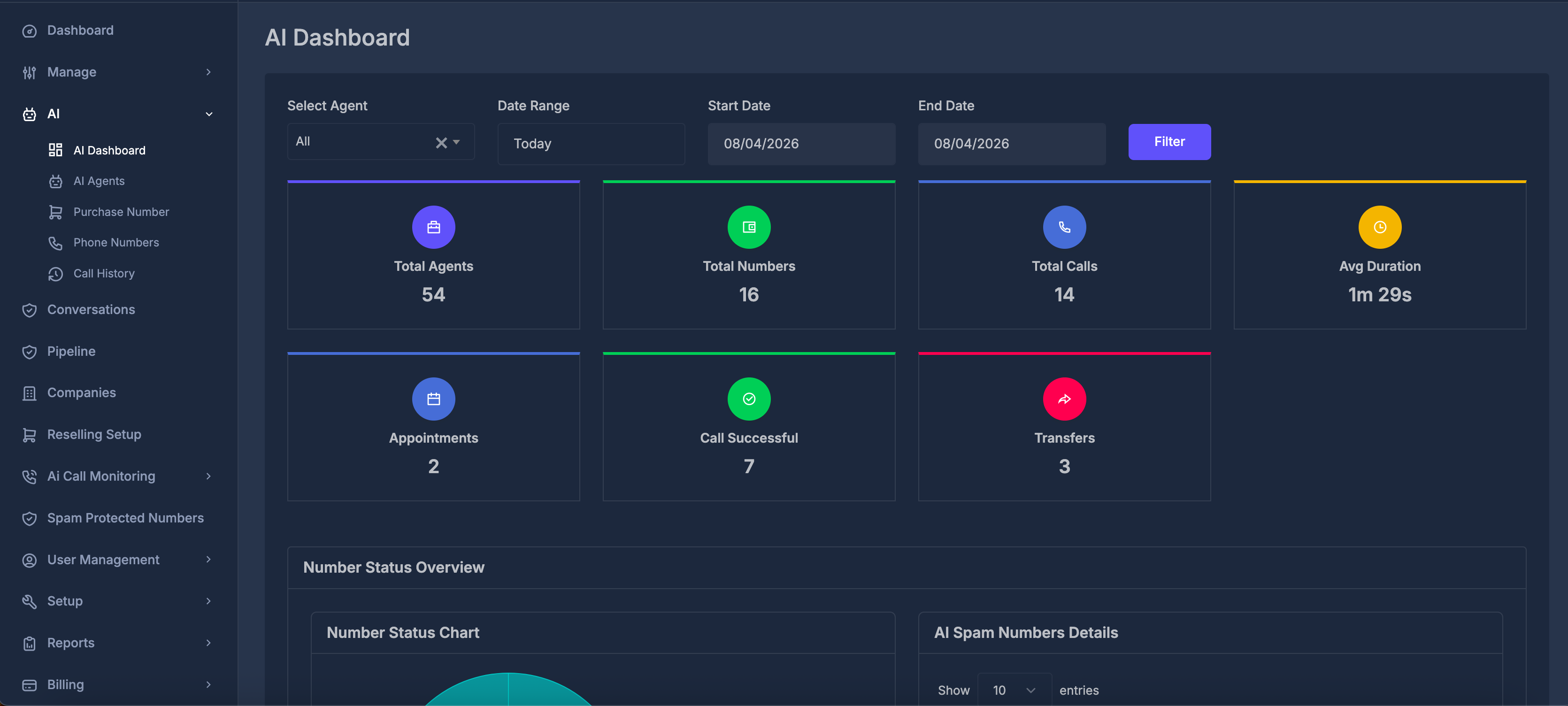
The AI Dashboard is a central overview of your AI assistants and the calls handled by them. Here you can see how many agents and phone numbers you have, how many calls occurred in a chosen period, how long calls lasted on average, how many were successful, how many appointments were booked, and why calls ended. Charts and tables below help you explore the details.
🧰 Filters (top row)#
This row controls which agent and which date range the overview uses.

👤 Select Agent
- All — data for every AI agent combined.
- Choosing a named agent limits the overview to that agent’s calls and metrics.
- Changing the agent usually refreshes the overview automatically; if not, press Filter.
📅 Date Range
Pick a preset such as Today, Yesterday, Last 7 Days, This Month, Last Month, and others.
- If you choose Custom dates, the Start Date and End Date fields become active. Set your range, then press Filter.
- For other presets, start and end dates are set for you and those fields stay inactive; the overview may refresh on its own.
🗓️ Start Date / End Date
- Used only with Custom dates.
- Charts and summary cards follow the period you define here once you apply the filter.
🔄 Filter
- Use this after changing dates or when the screen does not refresh by itself. It updates all related numbers and charts for your current choices.
📈 Summary cards#
Each card shows one key figure. Hovering (or focusing) on a card may show a short explanation.
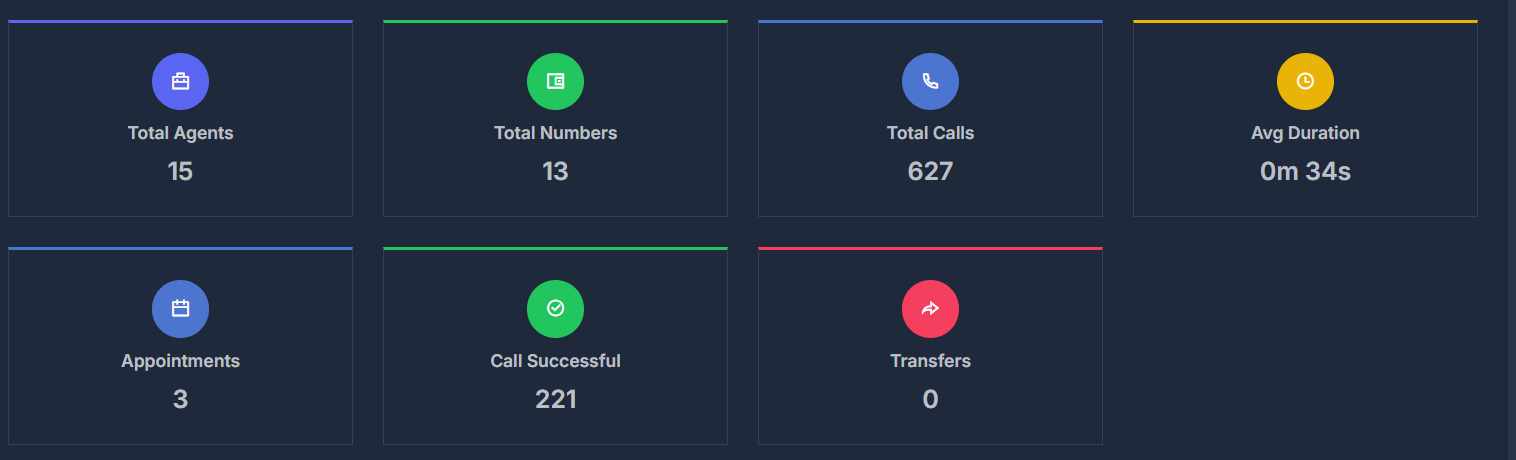
👩💻 Total Agents
- The number of all AI agents in your account, whether active or inactive.
- This count does not depend on the date filter; it describes your overall setup.
☎️ Total Numbers
- The total count of phone numbers used with your AI setup.
- One agent can have more than one number.
📞 Total Calls
- All calls in the selected date range and selected agent scope, including inbound and outbound.
⏱️ Avg Duration
- The average length of calls in that period, shown in minutes and seconds.
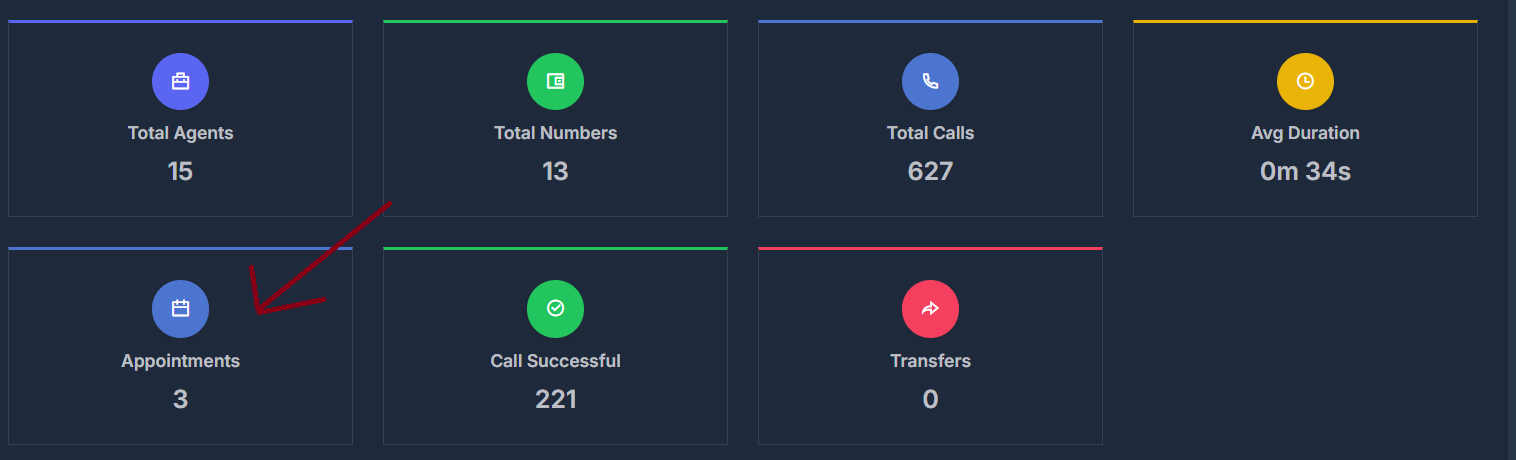
📅 Appointments
- Calls where an appointment date and time was recorded.
- Clicking this card opens the Appointment Details panel .
✅ Call Successful
- Calls marked as successful (yes).
🔀 Transfers
- Calls that ended with a transfer to another destination.
🚦 Number Status Overview#
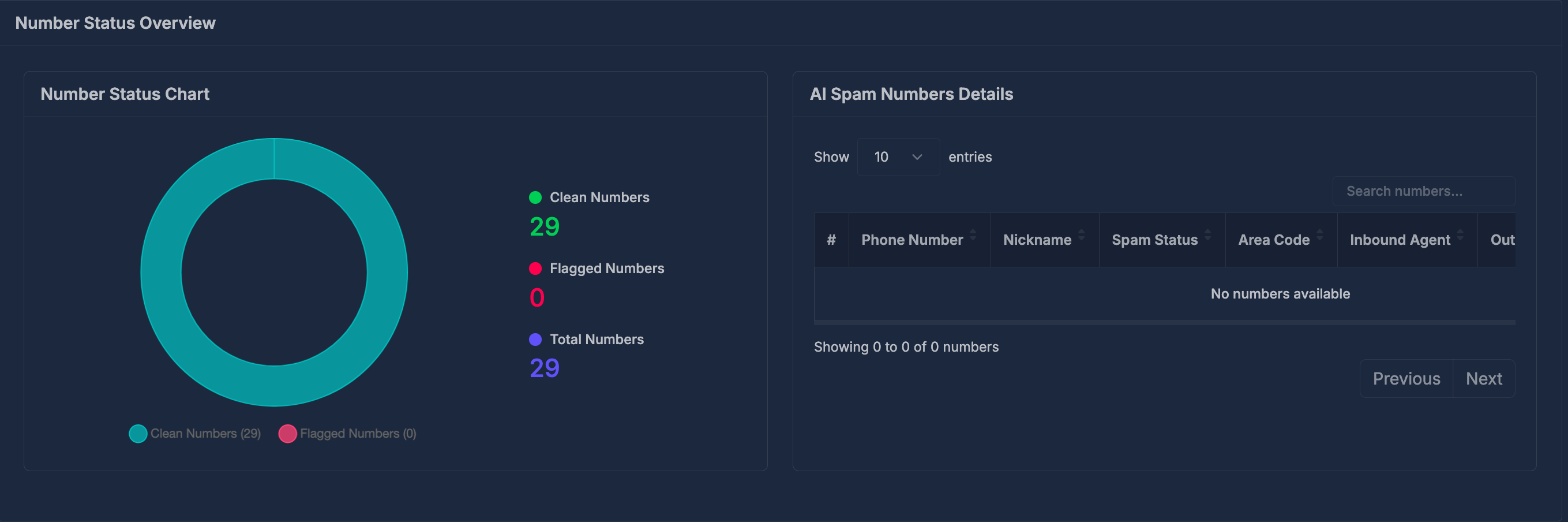
This section focuses on spam or risk status of your numbers. It reflects the current status of numbers more than a single call date.
📊 Number Status Chart
- A chart comparing Clean and Flagged numbers.
- Counts shown beside the chart:
- Clean Numbers
- Flagged Numbers
- Total Numbers (overall count used in this view)
⚠️ AI Spam Numbers Details
Lists numbers whose status is Flagged or In Progress.
| Column | Meaning |
|---|---|
| # | Row number |
| Phone Number | The phone number |
| Nickname | The label you gave the number |
| Spam Status | Current status (for example flagged or in progress) |
| Area Code | Area code |
| Inbound Agent | Agent linked for inbound calls |
| Outbound Agent | Agent linked for outbound calls |
| Updated At | When the record was last updated |
📊 Call Analytics#
Charts in this section use your selected date range and agent.
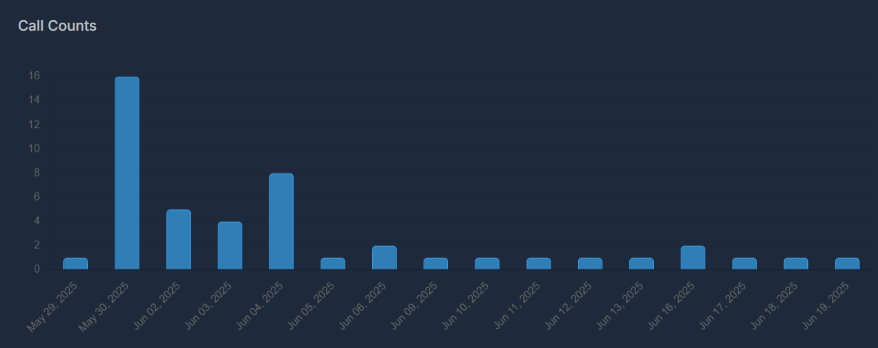
📆 Call Counts
- How many calls occurred on each day across the period.
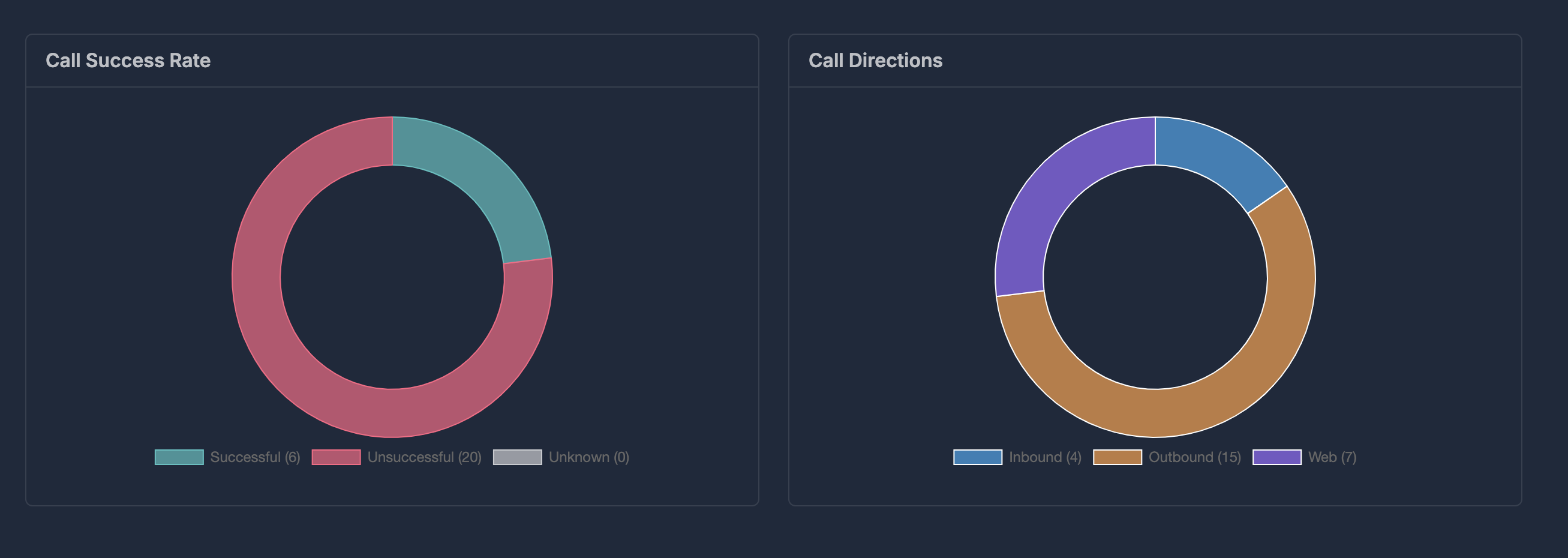
🟢 Call Success Rate
- Share of calls marked successful, unsuccessful, or unknown (ring-style chart).
🔄 Call Directions
- How many calls were inbound, outbound, or web.
🔚 Disconnection Reasons
- Why each call ended — for example caller hung up, assistant hung up, transfer, voicemail reached, busy line, no answer, or other connection or system situations. Counts are shown per reason type.
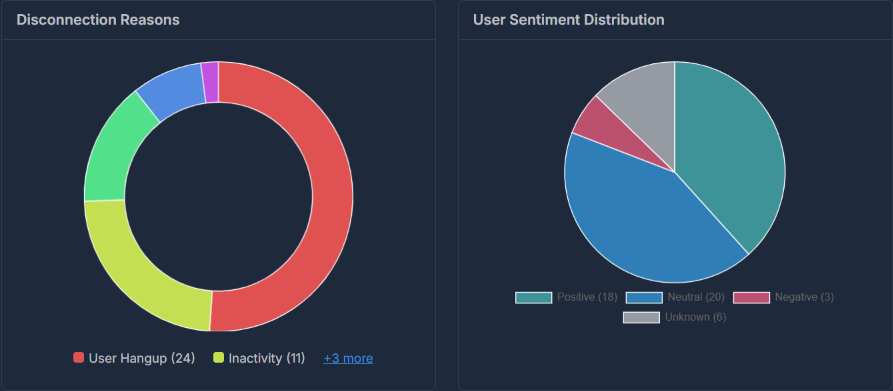
😊 User Sentiment Distribution
- How calls are split across Positive, Neutral, Negative, and Unknown sentiment.
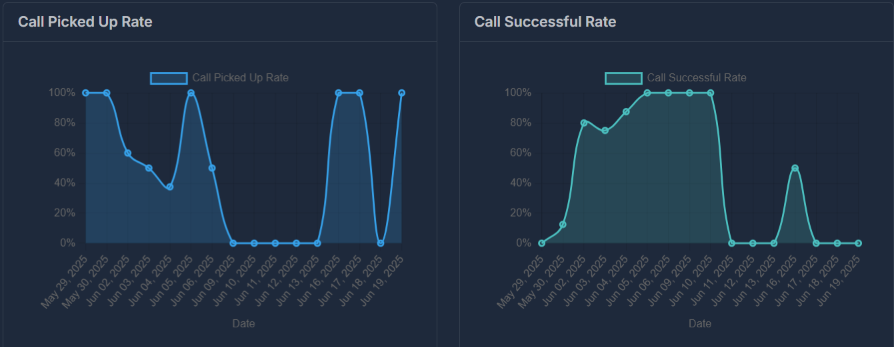
☎️ Call Picked Up Rate
- Over time, the percentage of calls where the end reason indicates a connected conversation (for example caller hangup, assistant hangup, or transfer) versus all calls.
🎯 Call Successful Rate
- Over time, the percentage of calls marked successful.
🔀 Call Transfer Rate
- Over time, the percentage of calls that ended in a transfer.
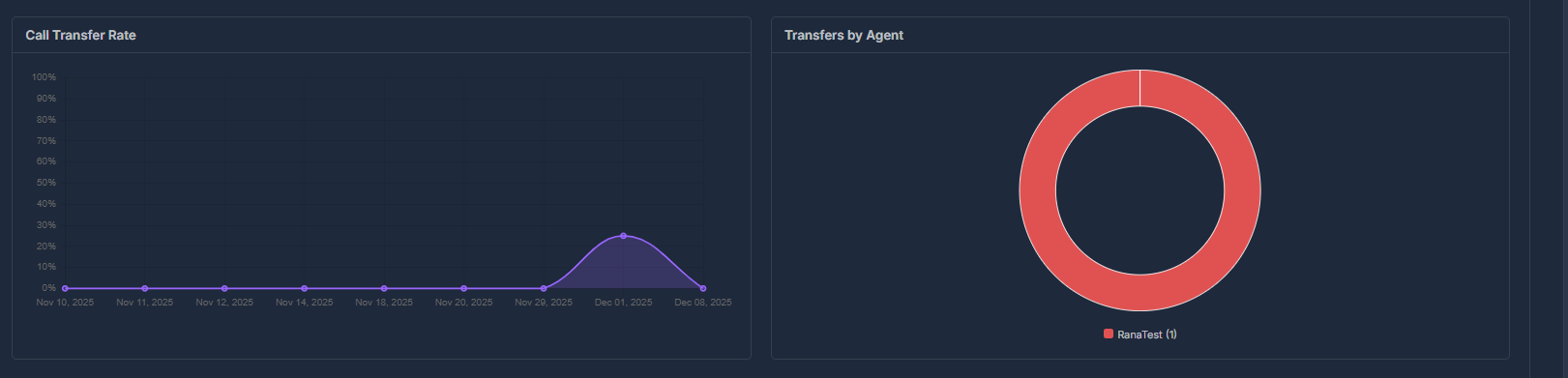
👨💼 Transfers by Agent
- Which AI agent transferred calls and how many times.
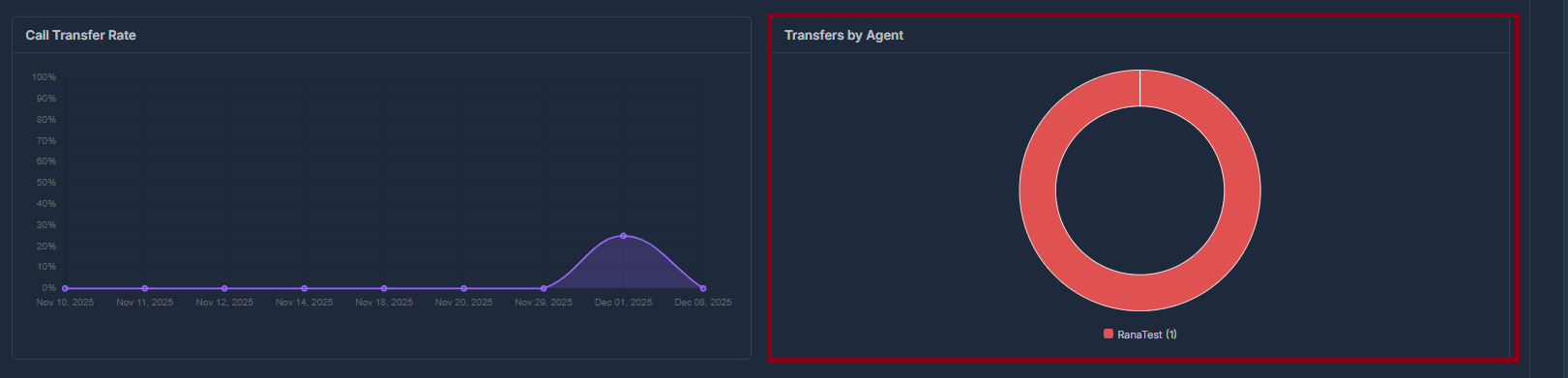
Reading the chart: Each color is a different AI agent; larger segments mean more transfers. Hover a segment for exact counts. You can click a segment, use the legend below, or use +X more to pick an agent when there are many.
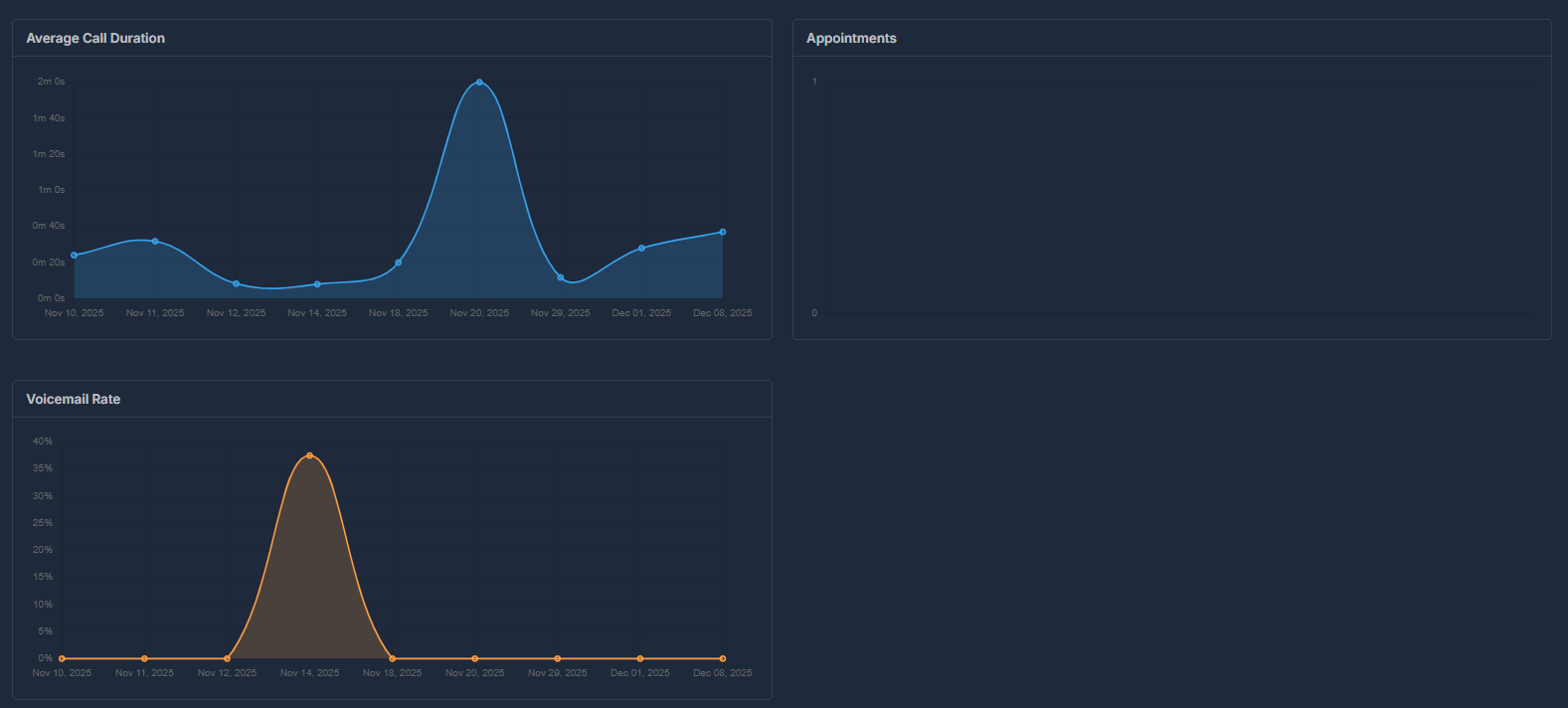
⏲️ Average Call Duration
- Average call length by day over the period.
📅 Appointments
- Trend of appointment-related activity by day.
📬 Voicemail Rate
- Percentage of calls that reached voicemail.
📆 Appointment Details Panel#
This panel appears when you click on the Appointments summary card.
- Displays the company name and the total number of appointments at the top.
- The table usually includes these columns:
- Call Date — date and time of the call
- Agent — AI agent managing the call
- From / To — caller and recipient numbers
- Duration — call length
- Appointment — scheduled appointment time
- Status — was the call successful
- Sentiment — detected sentiment
- Recording — audio player if there’s a recording
- Actions — Details option for more information
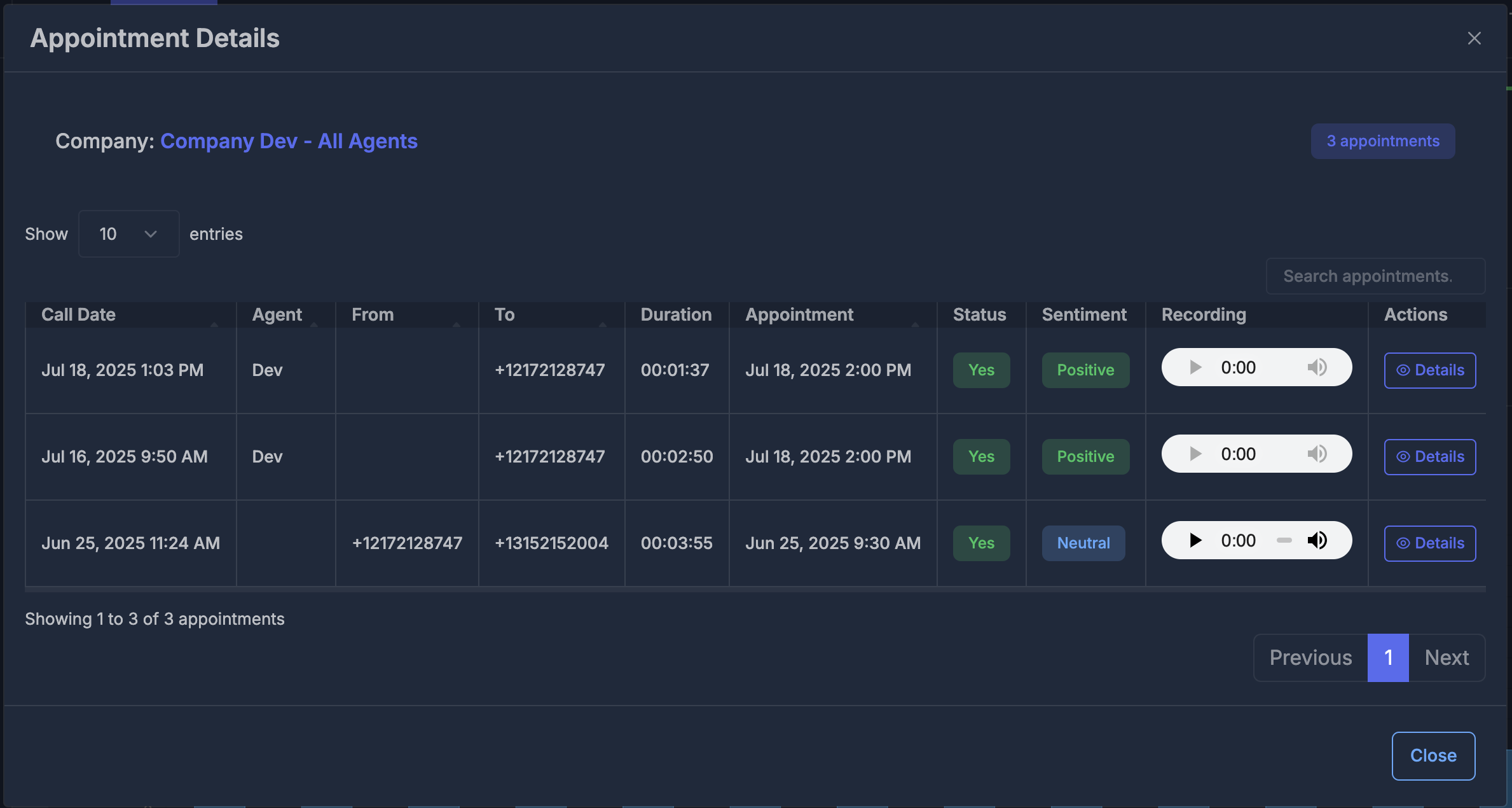
Use the Close button to exit the panel. If there is an issue loading data, an error message will be shown.
📞 Call Details Panel#
This panel opens when you select Details on a call entry.
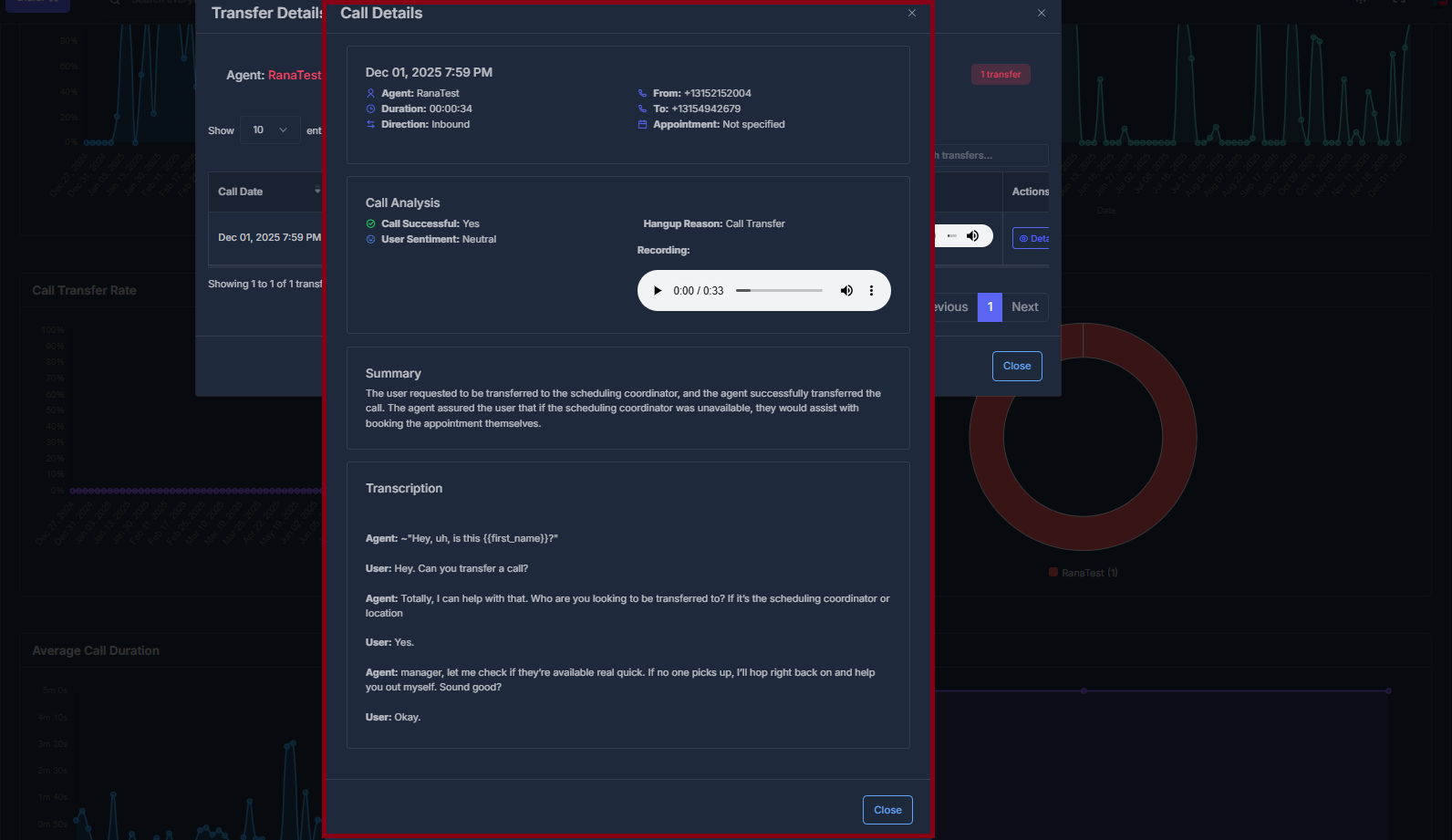
- Displays: date and time, Agent, Duration, and Direction (inbound, outbound, or web).
- From and To phone numbers.
- Appointment field—shows time if booked, or “not specified.”
- Call Analysis section: indicates success, user sentiment, and Hangup reason.
- Recording is available with playback controls if there’s an audio file.
- If a Summary or Transcription exists, these appear in their own sections; otherwise, they are hidden.
🔀 Transfer Details Panel#
This panel offers an in-depth view of all transferred calls within the relevant workflow.
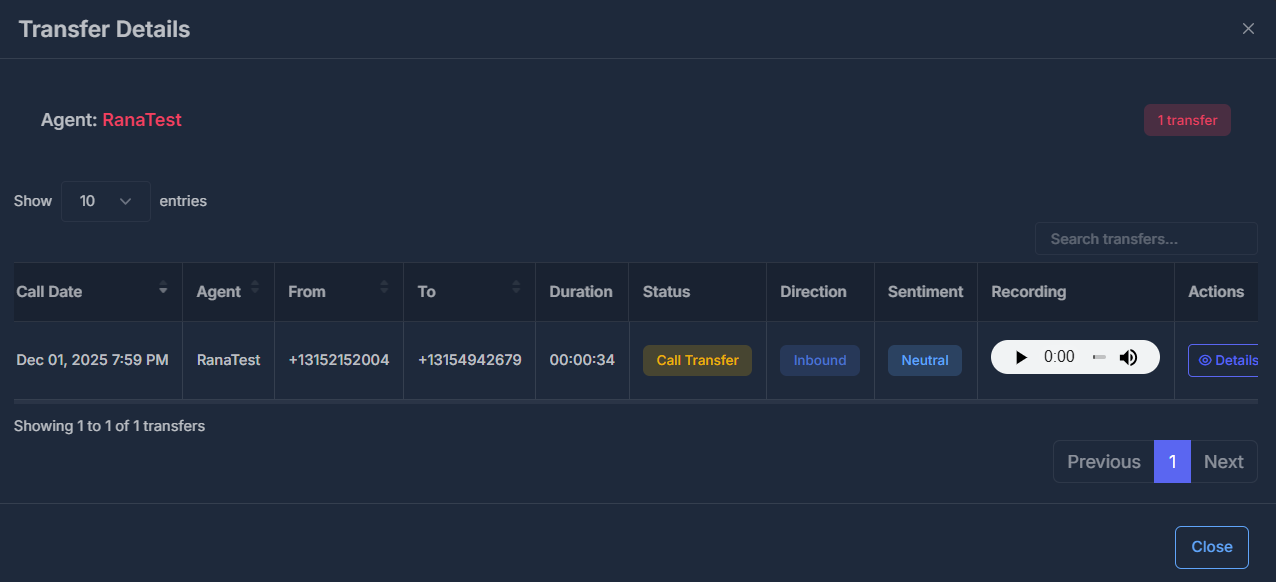
- Shows the Agent’s name and total number of transfers at the top.
- The table lists: Call Date, Agent, From, To, Duration, Status, Direction, Sentiment, Recording, and Actions (Details).
The table often provides features such as searching, sorting, pagination, and the ability to select how many rows are displayed per page.