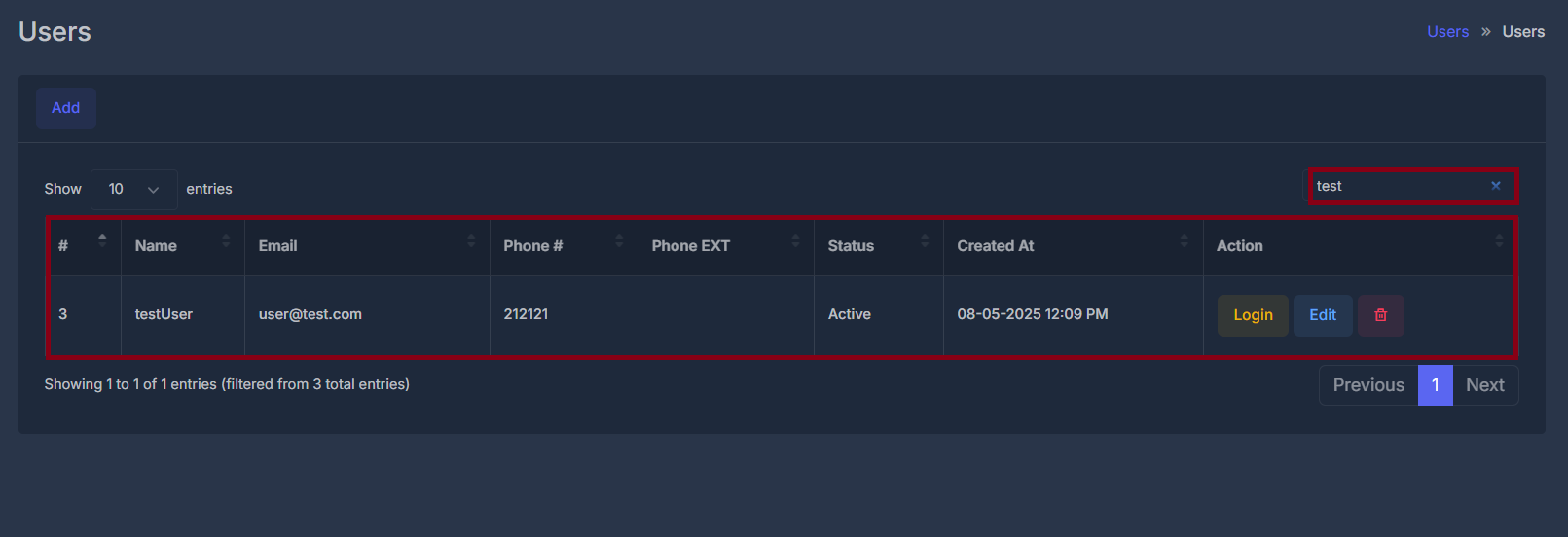
Users is where you see everyone who belongs to your company in this product, add new people, change their details, open the product as they see it, or remove someone. Only people tied to your company appear in the list.
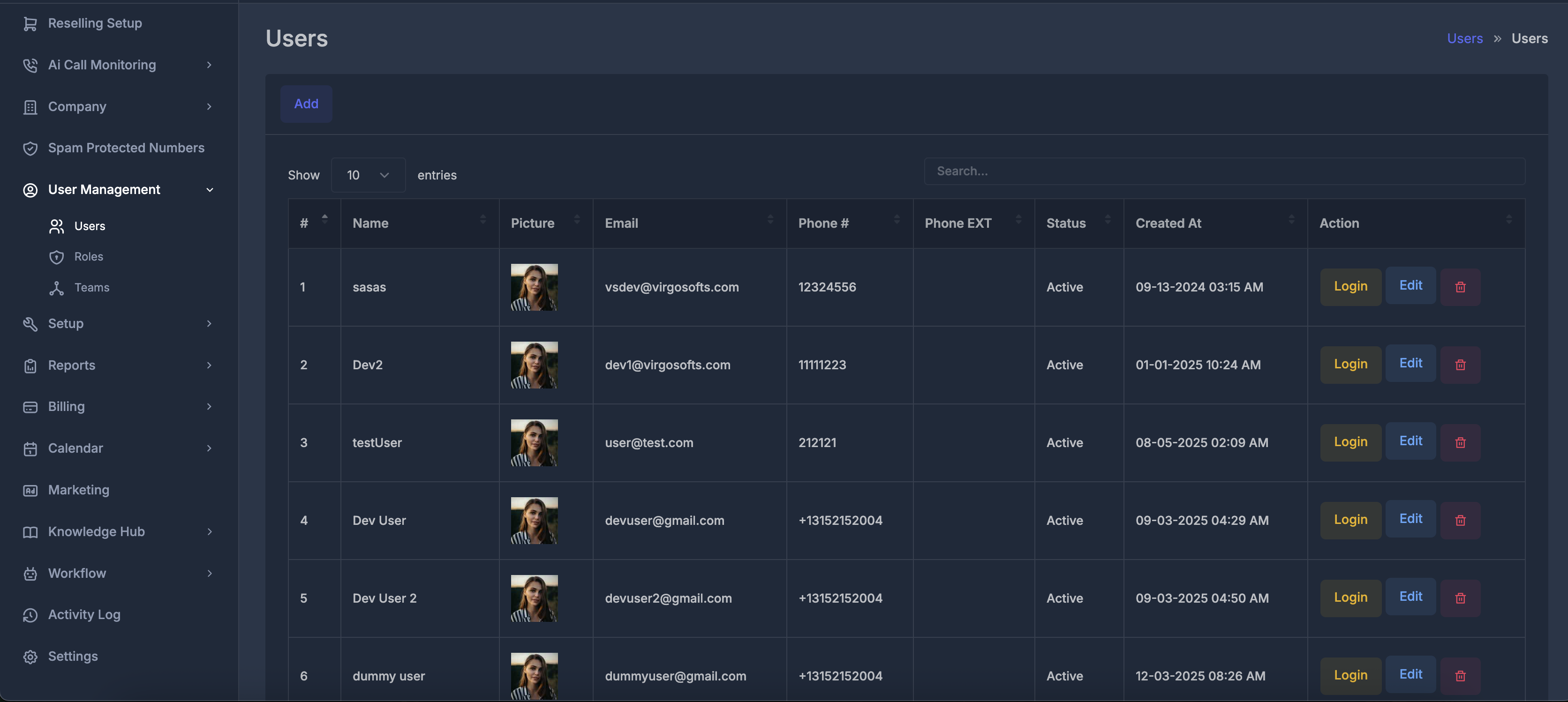
📋 Main list#
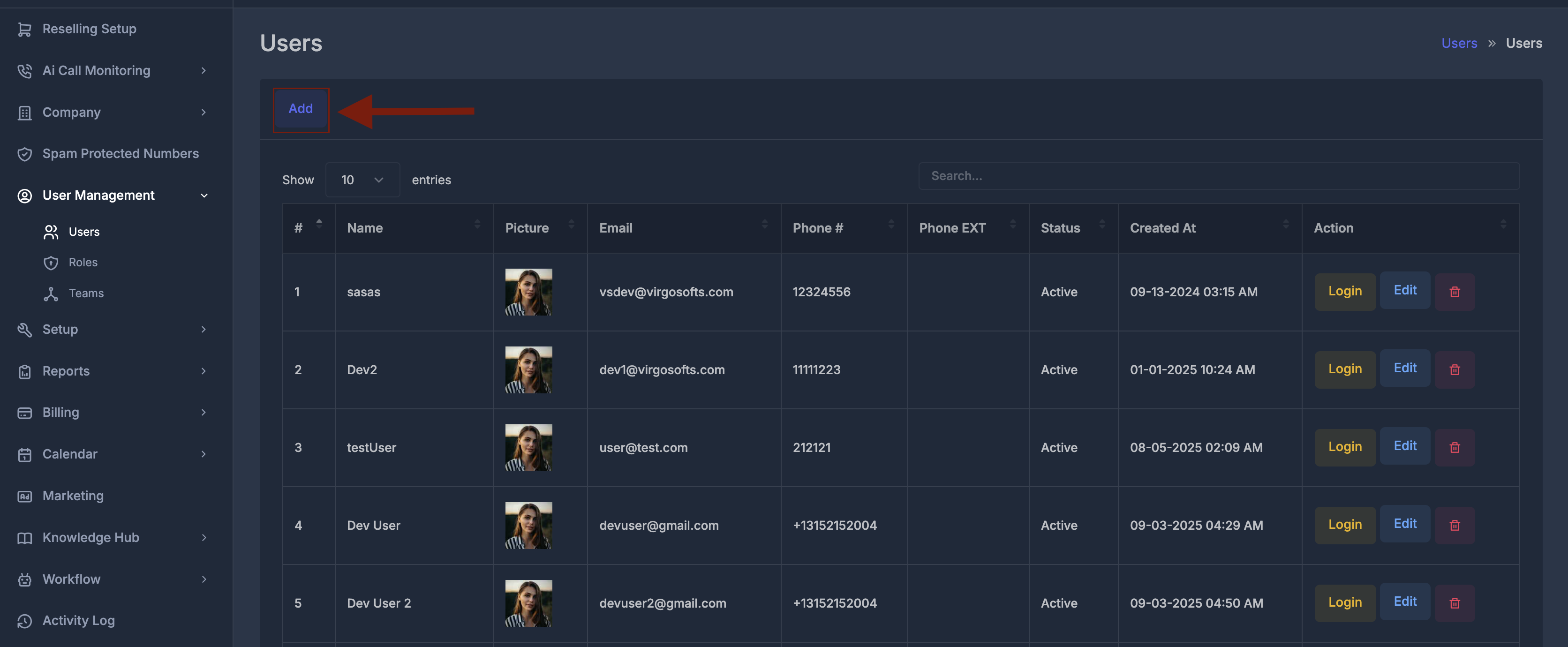
Add opens the screen to create a new person.
The table shows one row per user. You can:
- Change how many rows appear using the “show entries” control (often 10 at a time).
- Find someone quickly using the search box; it filters the table by what you type.
🧾 Columns#
| Column | Meaning |
|---|---|
| # | Row number in the list (1, 2, 3…). |
| Picture | The profile picture of the user, if one is uploaded. Usually shown as a small image or avatar. |
| Name | The person’s name as stored in the account. |
| Their email address (also used to sign in). | |
| Phone # | The main phone number on file for them. |
| Phone EXT | Extra or extension numbers linked to them (when assigned). |
| Status | Whether their account is pending, active, inactive, or suspended. |
| Created At | When this user record was created, shown in your time zone. |
⚙️ Actions on each row#
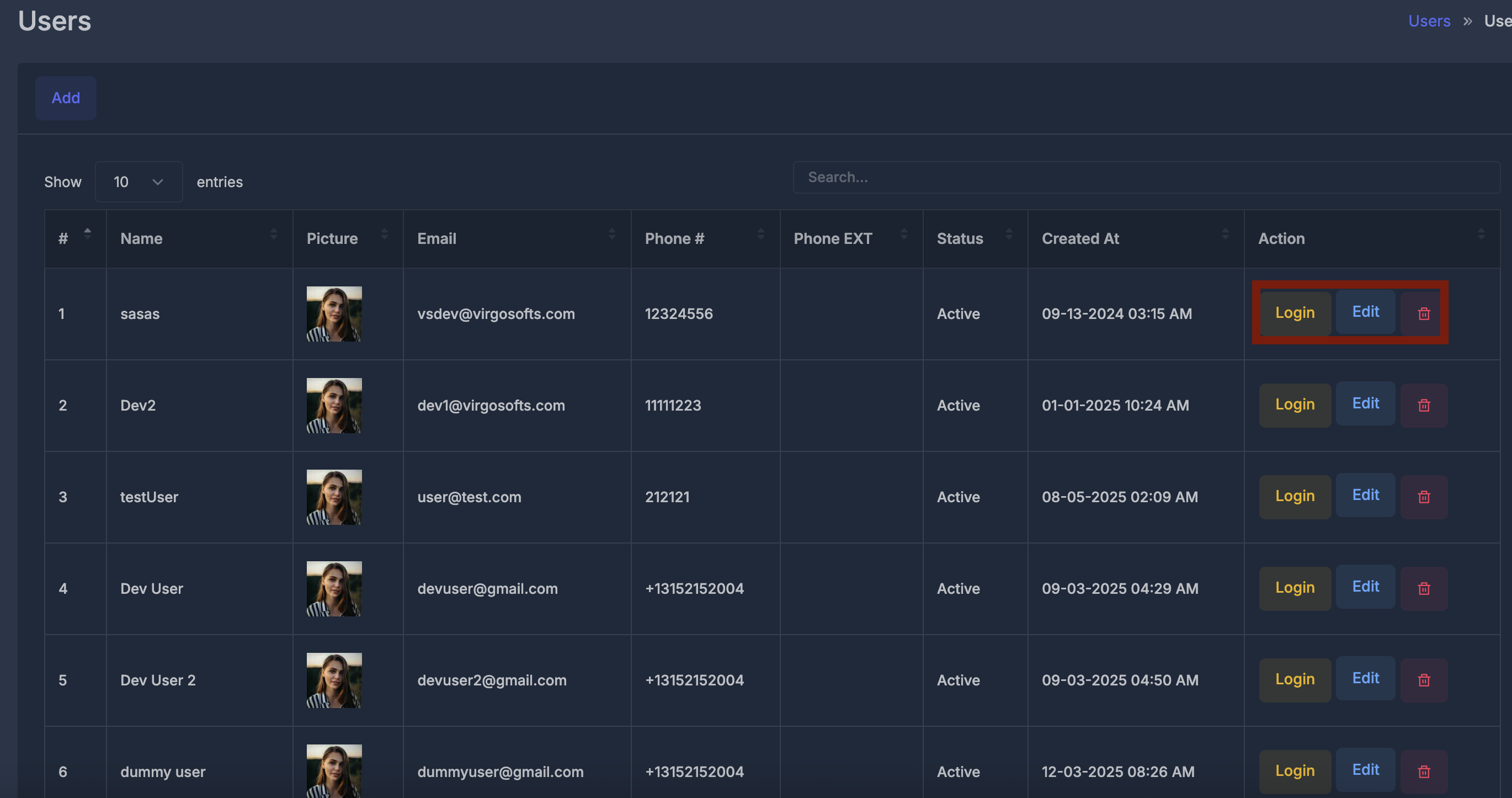
- Login — Asks you to confirm, then opens the product as that user, so you see the same screens and options they do. Use this for support or checking their setup.
- Edit — Opens the form with that person’s details so you can change them.
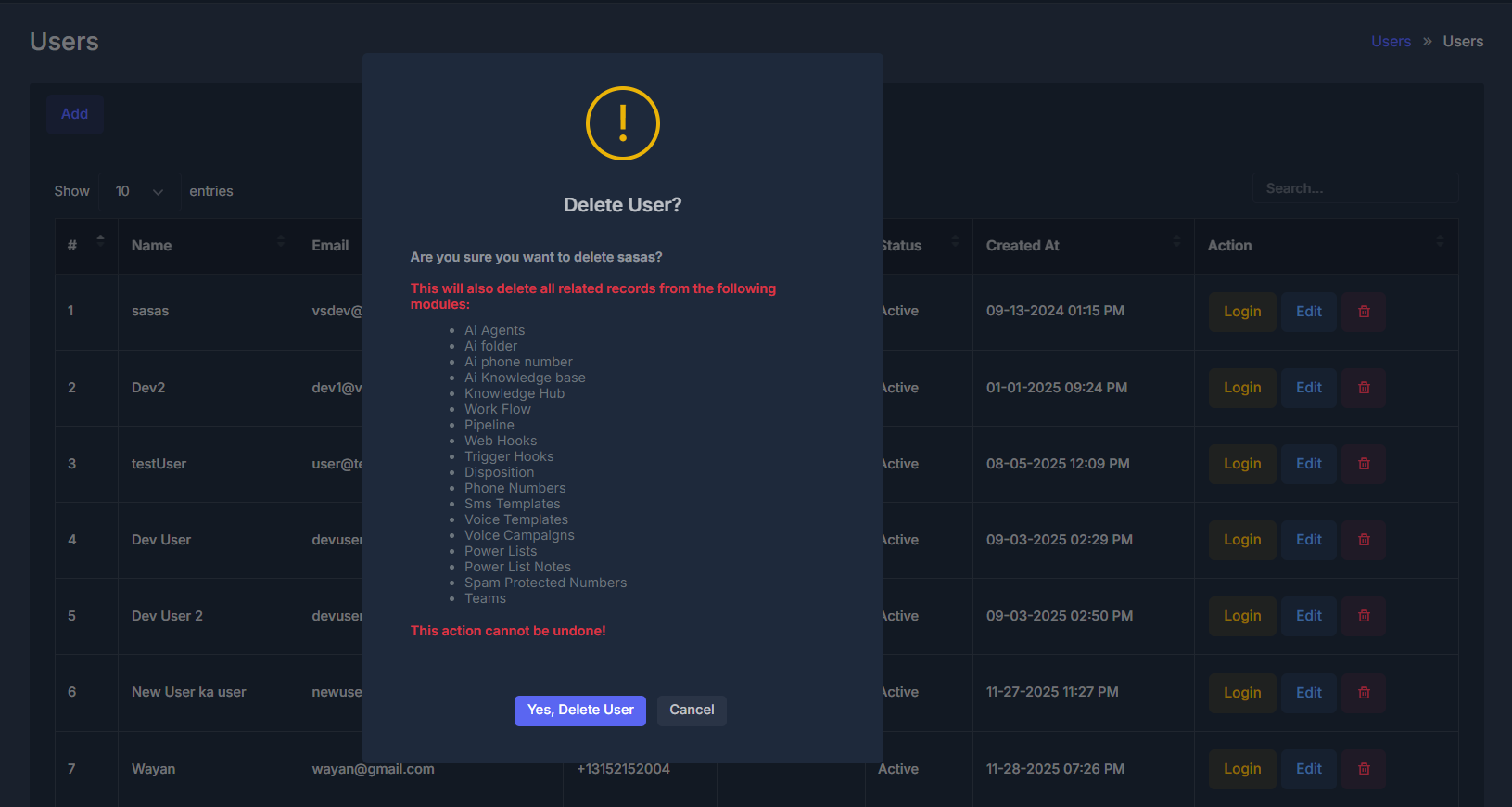
- Delete — Removes that user. You must confirm. The message explains that many related items (agents, workflows, pipelines, phone setup, templates, lists, teams, and more) can be removed with the user and that this cannot be undone.
➕ Add or ✏️ Edit user (form)#
Use Add for someone new, or Edit on a row to change an existing person. Back returns you to the list without using the other buttons.
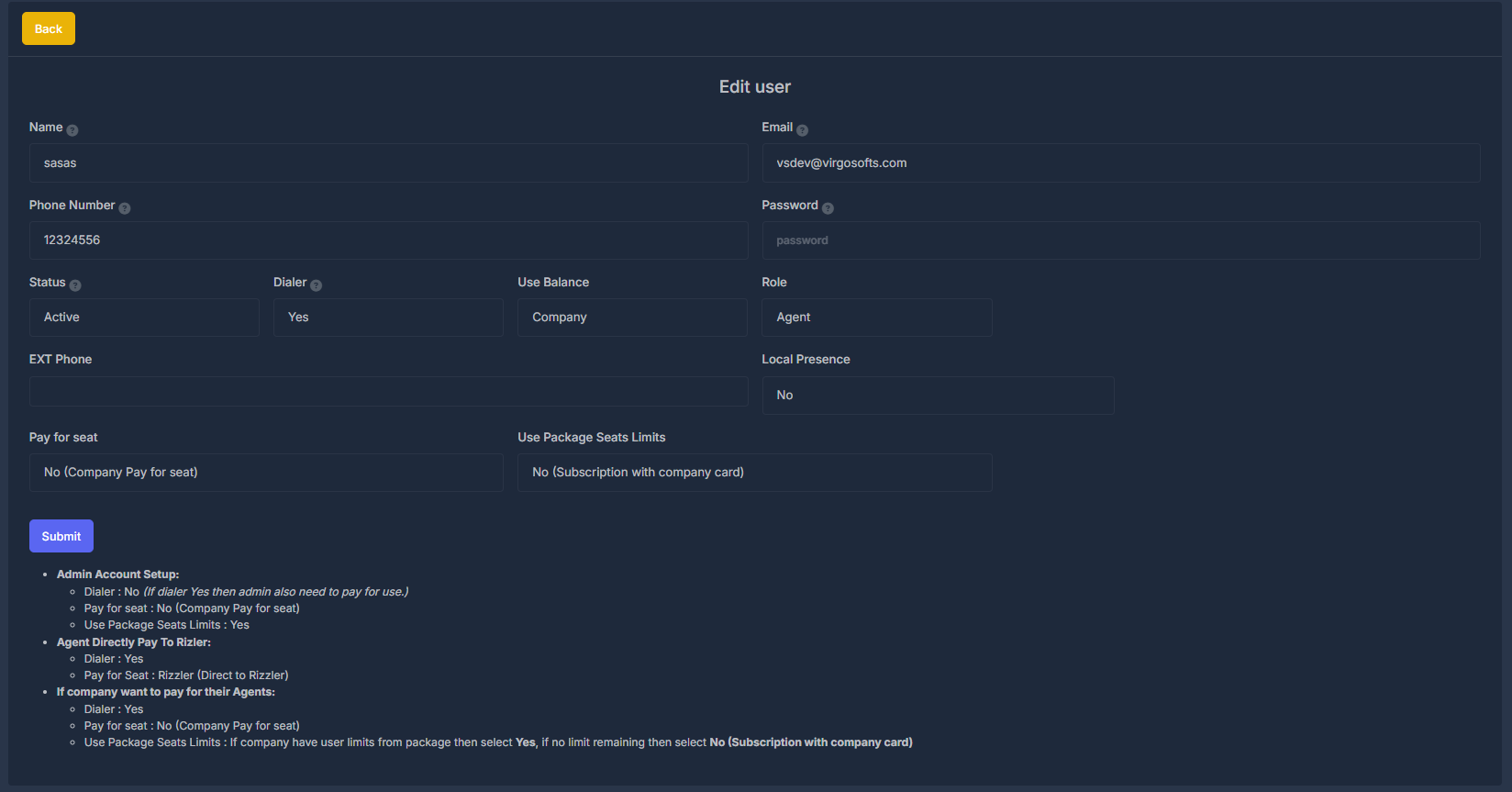
Small question-mark hints next to some fields give extra guidance when you point at them.
👤 Name
Full name. This is how the person appears in the product.
Must be a real address. It is used for signing in and for messages such as the welcome message for new users. The same email cannot be used twice in the system.
📞 Phone number
Used for calling-related features. You can enter it with or without a country code (for example +1234567890 or 1234567890).
🔒 Password
- New user: You must set a password.
- Existing user: Leave this empty to keep their current password. Only fill it in if you want to set a new one.
🚦 Status
- Pending — Not fully ready yet.
- Active — Can sign in (subject to the rest of their setup).
- Inactive / Suspended — Generally cannot use the account as normal.
Use the hint on the field for the exact behavior.
☎️ Dialer
No — This person does not use the dialer.
Yes — They can use dialer features.
Note: Turning dialer on can affect who pays for that seat and how company package seats are counted (see Pay for seat and Use package seats limits below, and the examples at the bottom of the form).
💰 Use balance
Company — Spending comes from the company balance.
User — Spending comes from that person’s own balance.
🏷️ Role
Choose one role from the list your company uses (these are created elsewhere under Roles). Name, email, and role are all required before you can save.
🔢 Assign phone numbers
You can pick one or more company phone numbers (from your connected numbers) to attach to this user. A number that is already assigned to another user cannot be assigned again until it is freed.
🌎 Local presence
No — Local presence is off.
Yes — You can choose area codes so outbound calls can use numbers that match those areas. When you choose Yes, the Area codes list appears so you can select one or more codes.
💺 Pay for seat
- No (Company pay for seat) — The company pays for this seat in the usual company billing flow.
- Rizzler (Direct to Rizzler) — This person is billed directly to Rizzler (not through the company seat path in the same way).
When Company pay is selected, an extra choice appears: Use package seats limits (see next).
📦 Use package seats limits
(Shown when the company pays for the seat.)
- Yes — This user counts toward limits in your company package for seats (when dialer is on and this option applies). If the limit is reached, you may see a message that the package seat limit is exceeded.
- No (Subscription with company card) — Uses the other billing path described in the option (company card / subscription style setup).
The bullet list at the bottom of the form gives example combinations for:
- A typical admin setup (dialer off, company pays, using package limits).
- An agent who pays Rizzler directly (dialer on, pay to Rizzler).
- Agents the company pays for (dialer on, company pays, and how to set package limits vs card).
✅ Submit
Saves the user. If something is wrong (duplicate email, seat limit, phone numbers already taken, missing password for a new user, or missing required fields), a message explains what to fix. After a successful save, the page returns to the user list.
📩 Welcome email
When you add a new user successfully, the system sends a welcome message to their email so they know how to get started (including sign-in information your company uses).
🗑️ Deleting a user
Deleting removes that user and can remove a large amount of related work tied to them (the confirmation lists examples). Any personal subscription tied to that user may be stopped as part of removal. This action should be treated as permanent.
🔄 User Management#