📊 Overview#
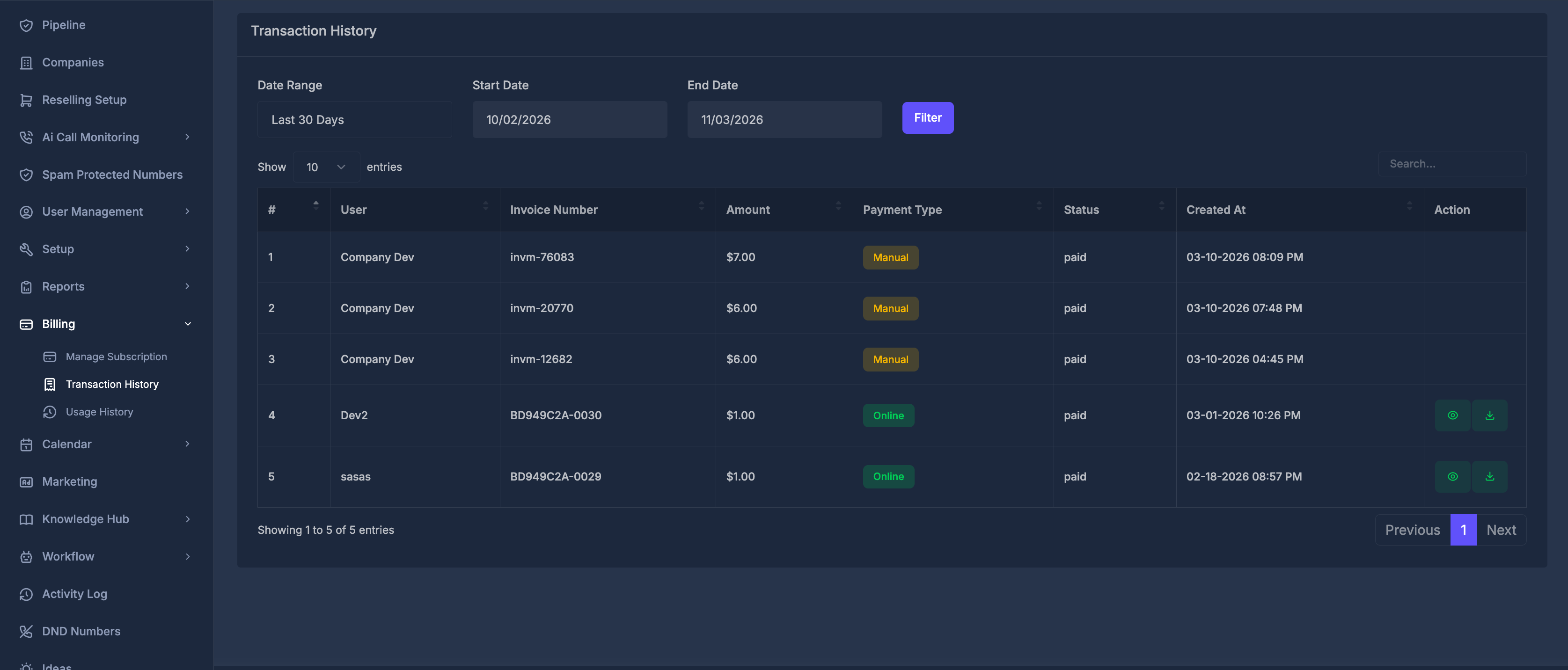
The Transaction History feature provides a comprehensive dashboard for monitoring all financial transactions in your account. Track payments, view detailed invoice information, and manage your billing records with powerful filtering and search capabilities.
💳 Payment Tracking
Monitor all payment transactions with real-time status updates
🔍 Advanced Filtering
Search by date range, amount, status, and user information
📄 Invoice Management
View detailed invoice information and download receipts
🚀 Key Features#
📋 Transaction Table
Comprehensive table view showing all transaction details with sortable columns, including payment type.
📅 Date Range Filtering
Filter transactions by custom date ranges with quick preset options (Last 14 Days, etc.)
💰 Payment Status Tracking
Real-time status updates: Paid, Pending, Failed, Refunded
💳 Payment Type
Transaction History shows two types of payments, each identified by a colored badge in the Payment Type column:
🟡 Manual
- Balance added directly by an Admin or Company Owner from the panel without any payment gateway involvement.
- Recorded immediately as
paid - Invoice number auto-generated in format
invm-XXXXX(e.g.invm-76083) - No invoice URL or PDF attached
- No Action buttons (View/Download) shown in the table
🟢 Online
- Balance added through Stripe payment gateway when a user purchases or renews a subscription.
- Status updates in real-time (
paid,pending,failed) - Invoice number generated by Stripe (e.g.
BD949C2A-0030) - Invoice URL and PDF attached
- Action buttons available: View (👁️) and Download (📥)
📱 Action Controls
View details, download invoices, and manage transactions directly from the table
🔄 Transaction Workflow#
The transaction workflow follows a systematic process from initiation to completion:
📝 Workflow Steps#
🛒 Purchase Initiation
User selects a service package (Dev Package, Pro Plan, etc.) and proceeds to checkout
💳 Payment Processing
Payment gateway (Stripe) processes the payment using the selected payment method
✅ Payment Verification
System verifies payment success and validates transaction details
📝 Invoice Generation
Unique invoice number is generated (e.g., BD949C2A-0018) and invoice details are recorded
📧 Notification Sent
Payment confirmation email is sent to the user with invoice details
📊 History Update
Transaction appears in the Transaction History table with all relevant details
🔍 Search & Filter
Transaction becomes searchable and filterable in the dashboard
📋 Transaction Fields#
Understanding each field in your transaction history helps you track and manage your financial records effectively.
🔢 Core Fields#
#
Sequential Number
Auto-incremented transaction ID for easy reference
Example: 1
User
Account Identifier
Username or email of the account holder
Example: Dev2
Invoice Number
Unique Transaction ID
System-generated unique identifier for each transaction
Example: BD949C2A-0018
Amount
Transaction Value
Total amount charged including taxes and fees
Example: $1.00
📊 Status & Tracking Fields#
Status
Payment State
Current status of the transaction
Values: paid, pending, failed, refunded
Created At
Transaction Timestamp
Date and time when the transaction was created
Example: 09-01-2025 10:25 PM
Action
Available Operations
Actions you can perform on the transaction
Options: View Details, Download Receipt
📊 Detailed Field Reference#
| Field | Description | Example Value | Data Type |
|---|---|---|---|
| # | Sequential transaction number | 1 | Integer |
| User | Account username/identifier | Dev2 | String |
| Invoice Number | Unique transaction identifier | BD949C2A-0018 | String |
| Amount | Transaction value with currency | $1.00 | Currency |
| Status | Payment completion state | paid | Enum |
| Created At | Transaction timestamp | 09-01-2025 10:25 PM | DateTime |
| Action | Available operations | View/Download buttons | Actions |
🎯 Transaction Status Definitions#
Meaning: Payment completed successfully
Characteristics:
- ✅ Payment processed without issues
- ✅ Funds transferred successfully
- ✅ Service/product activated
- ✅ Invoice marked as paid
Actions Available:
- View invoice details
- Download receipt
- Access purchased services
🔍 Filtering & Search Features#
📅 Date Range Filtering#
Quick Presets
Last 14 Days - Most commonly used filter
Last 30 Days - Monthly overview
Last 90 Days - Quarterly review
Custom Range
Start Date: Select beginning date
End Date: Select ending date
Filter Button: Apply custom date range
🔍 Search & Display Options#
Results Display
Show Entries: Configure number of results per page
Options: 10, 25, 50, 100 entries
Default: 10 entries per page
Search Function
Global Search: Search across all fields
Real-time: Results update as you type
Fields: User, Invoice Number, Amount, Status
📄 Invoice Details & Actions#
💳 Payment Information#
Based on your transaction screenshots, here's what you'll see in invoice details:
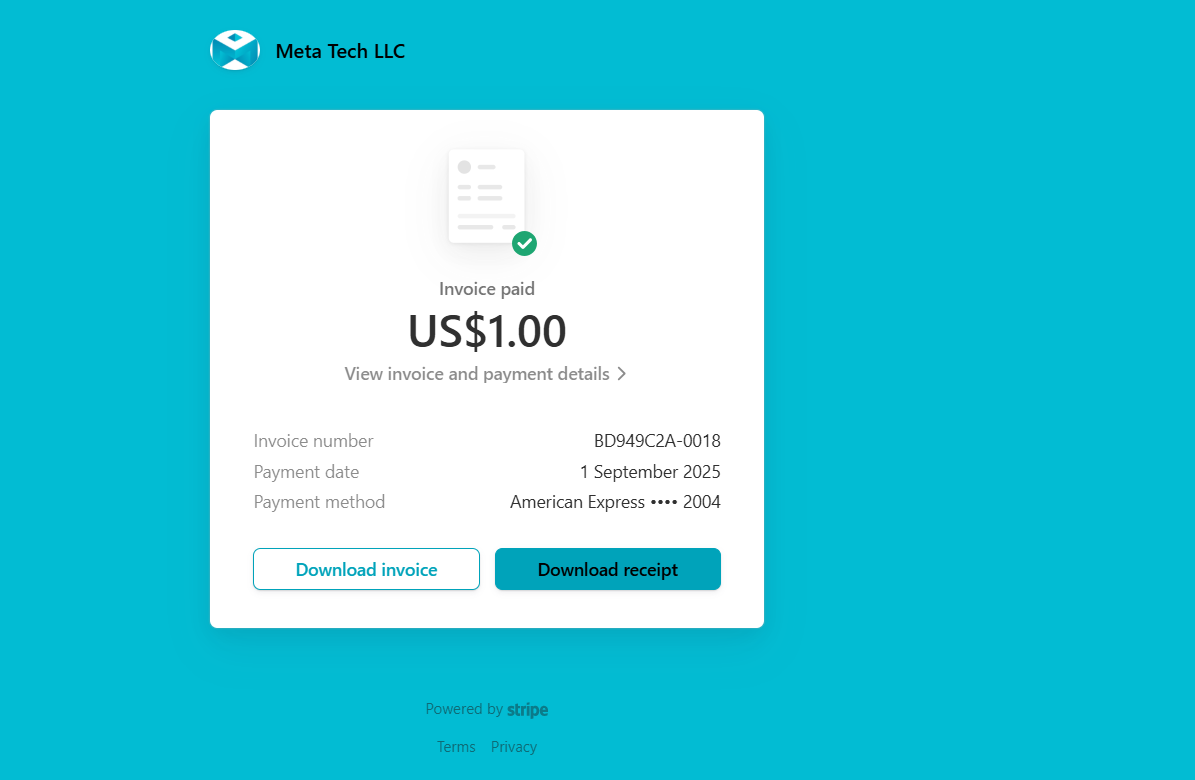
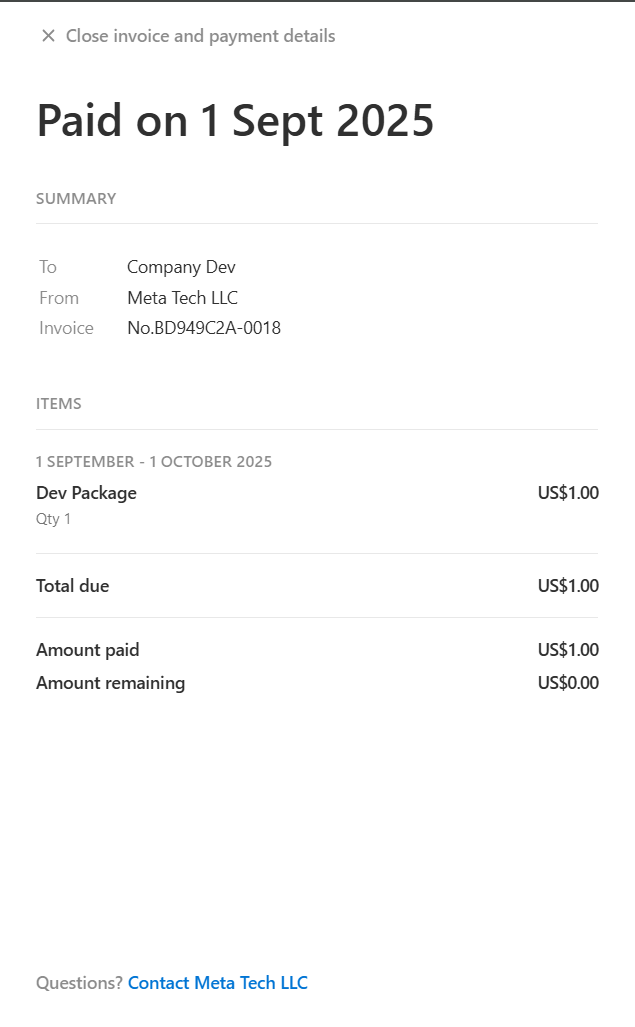
Transaction Summary
To: Company receiving payment
From: Payment processor (Meta Tech LLC)
Invoice: Unique identifier
Amount: Total paid
Payment Details
Payment Date: When payment was processed
Payment Method: Card type and last 4 digits
Status: Current payment state
Receipt: Download options available
🎯 Available Actions#
👁️ View Details
Click the eye icon to view complete invoice information including payment breakdown and billing details
📥 Download Invoice
Use the "Download invoice" button to get a PDF copy of the complete invoice
📄 Download Receipt
Use the "Download receipt" button to get a payment confirmation receipt
🔍 Transaction Lookup
Use the search function to quickly find specific transactions by any field
📈 Transaction Analytics#
💰 Payment Statistics#
Based on your transaction data, you can track important payment metrics and trends.
Key Metrics to Monitor:
- ✅ Success Rate: Percentage of successful payments
- 💳 Payment Methods: Distribution of payment types
- 📊 Transaction Volume: Number of transactions per period
- 💰 Revenue Tracking: Total income and trends
- 🔄 Retry Success: Failed payments that succeeded on retry
📊 Data Insights#
Payment Patterns
Peak Times: When most payments occur
Seasonal Trends: Monthly/quarterly patterns
User Behavior: Payment frequency analysis
Performance Metrics
Processing Speed: Average transaction time
Success Rates: Payment completion statistics
Error Analysis: Common failure reasons
🛠️ Troubleshooting & Support#
❓ Common Issues#
🔍 Can't Find Transaction
Solution: Use the search function or adjust date range filters
Check: Verify the correct date range and search terms
Alternative: Browse through different pages using pagination
📄 Download Not Working
Solution: Check browser settings and popup blockers
Retry: Try downloading again after a few moments
Support: Contact support if downloads consistently fail
💳 Payment Status Questions
Check Status: Look for real-time status updates in the table
Wait Time: Allow up to 24 hours for status changes
Contact: Reach out to support for payment discrepancies
📞 Getting Help#
Documentation
User Guides: Comprehensive help documentation
FAQs: Frequently asked questions
Video Tutorials: Step-by-step visual guides
Support Channels
Email Support: Direct email assistance
Live Chat: Real-time support chat
Help Desk: Ticket-based support system
This documentation covers all aspects of the Transaction History feature based on your actual interface. For additional support or questions about specific transactions, please contact your support team.