The Bulk Actions page allows you to manage contact imports and perform large-scale updates efficiently. From this page, you can monitor CSV import progress, review detailed results, and safely execute actions affecting many contacts at once.
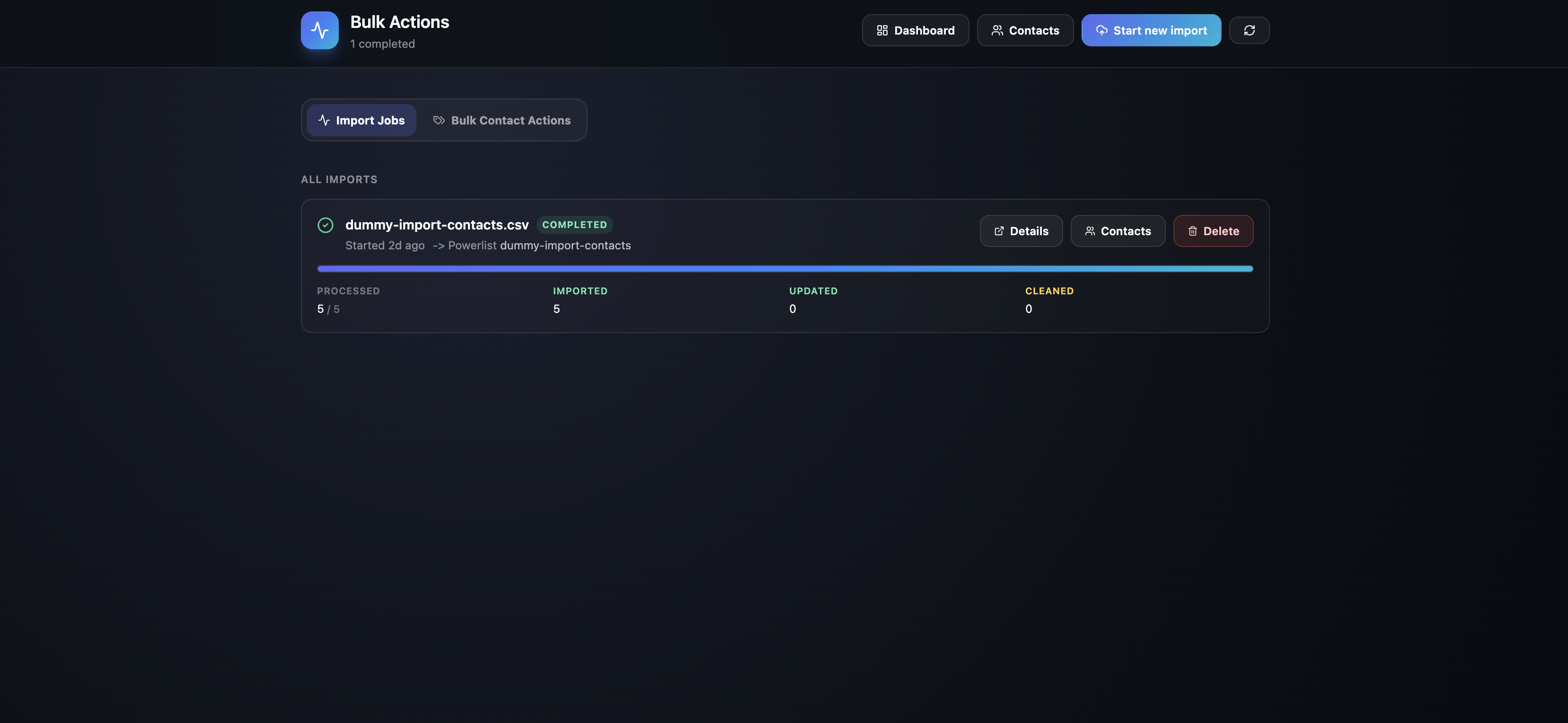
The page is divided into two main sections:
- Import Jobs — View and manage ongoing and completed contact imports.
- Bulk Contact Actions — Filter and select groups of contacts, then execute bulk actions on them.
This enables you to update thousands of contacts simultaneously, rather than manually editing records one by one.
📥 Import Jobs#
Within the Import Jobs tab, you’ll find a log of recent import activity accompanied by a clear job status:
| Status | Definition |
|---|---|
| Starting | The import process is initializing. |
| Running | The import is actively processing rows. |
| Finalizing | Wrapping up and saving final results. |
| Completed | The import finished without issues. |
| Failed | An error occurred and the import stopped. |
📋 Viewing Import Details#
Click the Details button for any import job to access a summary and breakdown.
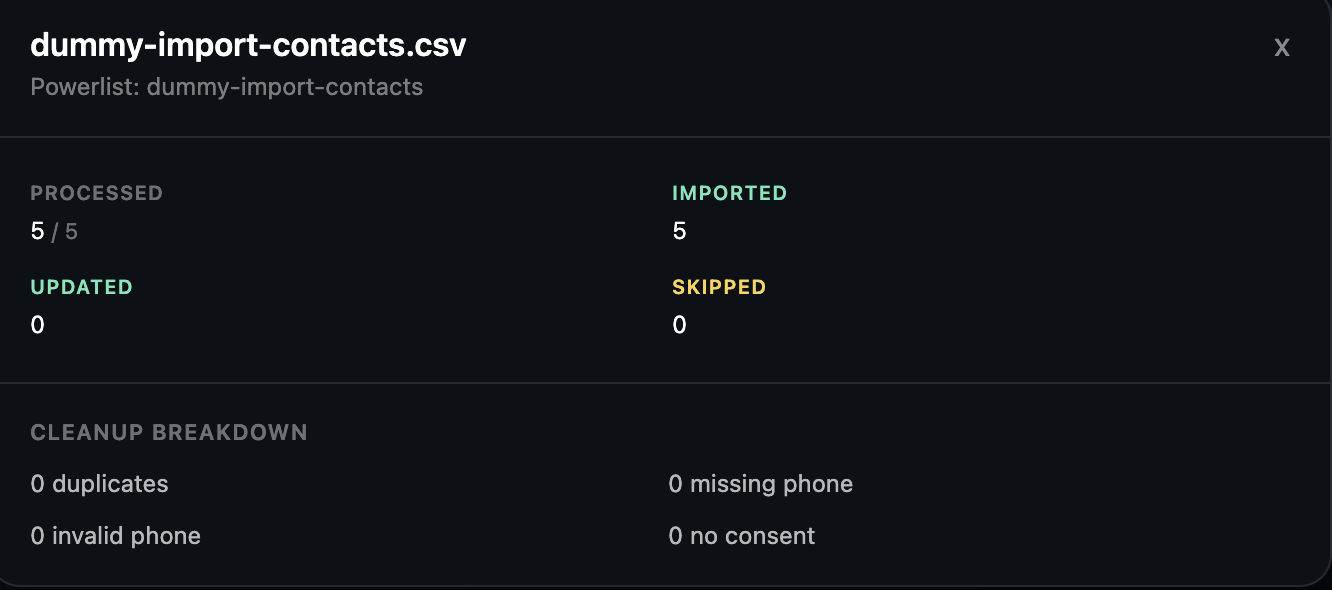
Available details include:
- File name or import identifier
- Number of rows processed
- How many contacts were imported, updated, or skipped
- Cleanup summary
- Any error messages from failed imports
These details give you transparency and a clear audit trail for every import.
🛑 Cancel an Ongoing Import
If an import is still in progress, you have the option to cancel it.
Canceling an import halts the processing of any additional rows. Contacts already imported remain unchanged. If a new powerlist was created but no contacts were imported, the empty powerlist is automatically removed.
🗑️ Remove Import Records
You can delete completed or failed import records from the Bulk Actions page.
This action only removes the record from the job history—it does not affect contacts that have already been imported.
⚡ Bulk Contact Actions#
The Bulk Contact Actions tab provides a way to filter contacts and then apply a batch operation.
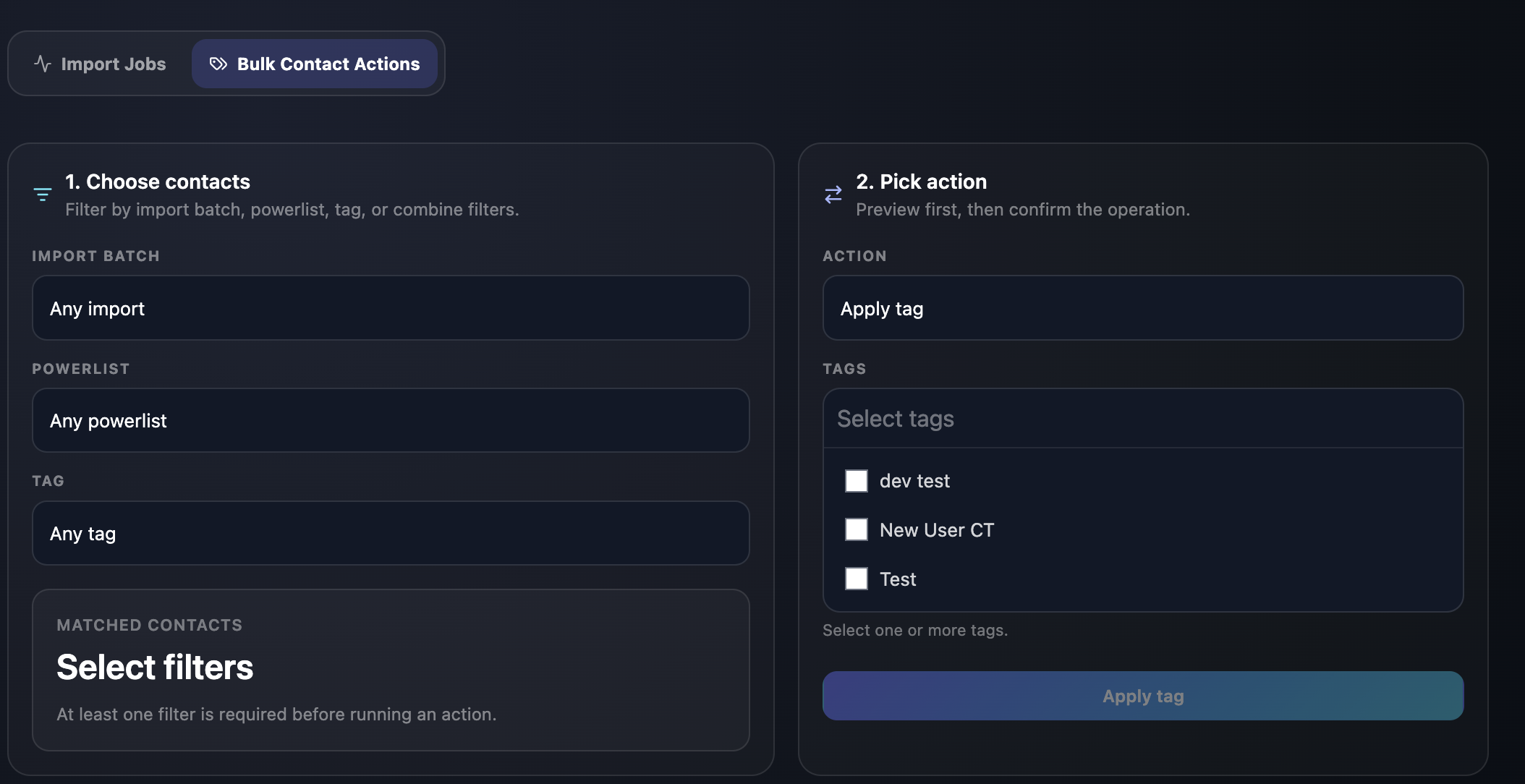
1️⃣ Step One: Filter Contacts#
Begin by narrowing down which contacts you want to include using one or more filter options:
| Filter | What it Does |
|---|---|
| Import batch | Selects contacts imported in a particular completed batch (from a powerlist). |
| Powerlist | Picks contacts assigned to a specific powerlist. |
| Tag | Finds contacts labeled with a specific tag. |
You can mix and match filters to fine-tune your selection. For example, you might choose contacts that were part of a certain import batch and have a particular tag.
As you add or adjust filters, you'll see a live count of the matching contacts. Double-check this number before moving on.
2️⃣ Step Two: Choose a Bulk Action#
Once you've filtered your contacts, select an action to perform on the group:
| Action | What It Does |
|---|---|
| Apply tag | Attach one or more tags to every contact in your selection. |
| Remove tag | Detach one or more tags from all selected contacts. |
| Move to powerlist | Move all chosen contacts to a different powerlist. |
| Delete contacts | Mark contacts as deleted, so they’re no longer visible in the main Contacts view. |
Before anything happens, you'll get a confirmation prompt that shows exactly how many contacts will be affected by your chosen action.