This guide explains PowerLists in simple language: purpose, main list, actions, setup form, and upload flow.
A PowerList is a flexible calling list that you can set up to manage outbound calls for your team.
Each PowerList lets you:
- Choose a distinct name for easy identification,
- Define dialing rules and preferences to suit your workflow,
- Assign specific team members and add relevant tags,
- Connect to CRM locations or use tagging for segmentation, if needed,
- Decide what happens after a call (disposition and outcome),
- Import contacts quickly by uploading data files.
🖥️ Main Screen Overview#
🏷️ Title & Navigation#
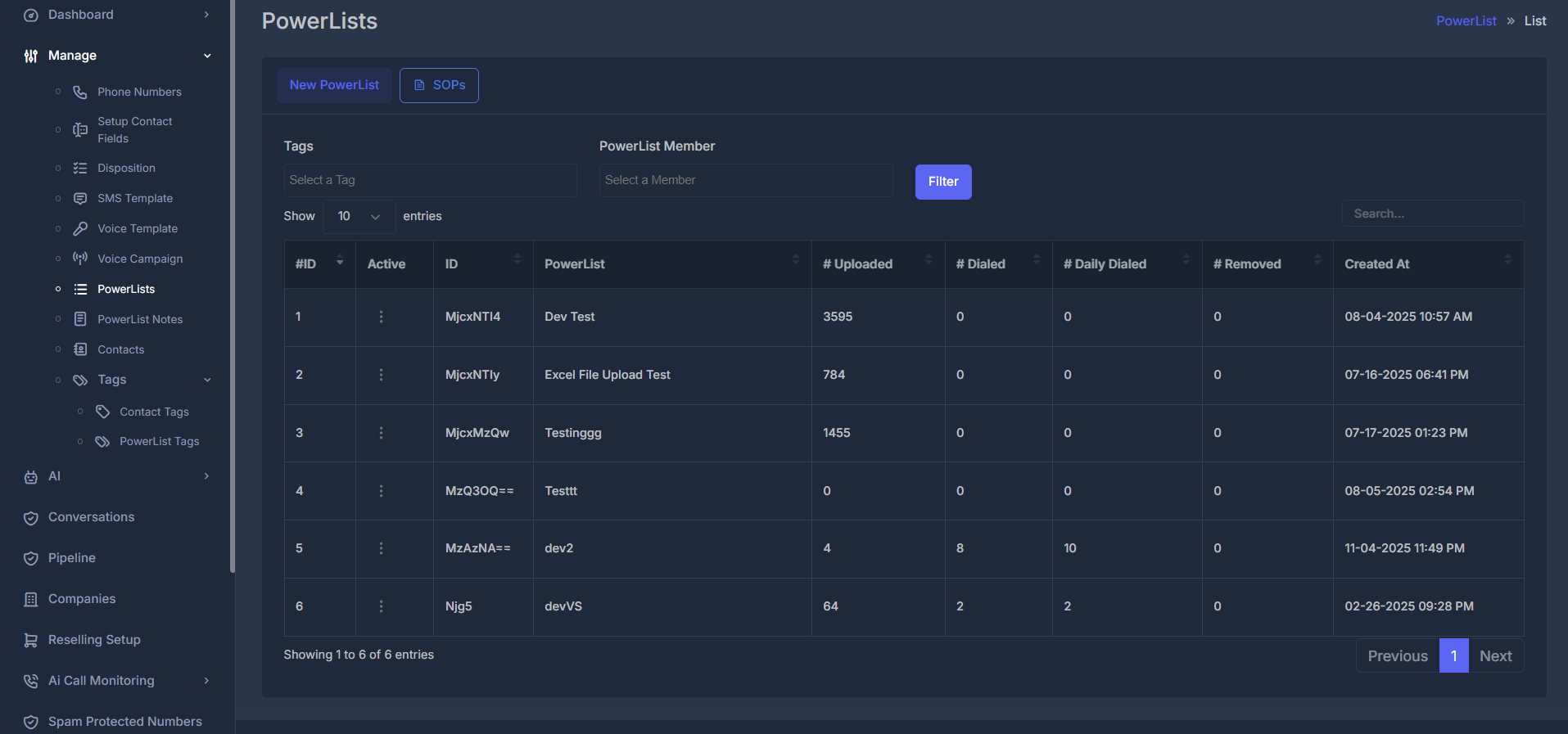
At the top, you'll see the PowerLists title and a breadcrumb trail, for example:
PowerList -> List
🏁 Top Actions#
- New PowerList: Begin creating a new calling list.
- SOPs: Access built-in standard operating procedures.
🗂️ Filters (above the list)#
- Tags: Filter PowerLists by their assigned tags.
- PowerList Member: Show lists by assigned team member(s) (when available).
- Filter: Apply your chosen filters.
⚙️ Table Controls#
- Select how many rows to show per page.
- Use the search box to quickly find lists by keyword.
🗃️ Understanding the Main Table#
| Column | Description |
|---|---|
| #ID | Numbered row as shown in your current view. |
| Active | Menu icon (...) for available actions on this list. |
| ID | The internal system identifier (used for support and exports). |
| PowerList | The list's display name (might include tag indicators or "chips"). |
| # Uploaded | Total number of contacts uploaded to the list. |
| # Dialed | Aggregate number of contacts dialed in total. |
| # Daily Dialed | Number dialed today only. |
| # Removed | Contacts deleted/removed from the list. |
| Created At | Date and time the list was created (shows in your local timezone). |
⚡ Menu actions (under Active)#
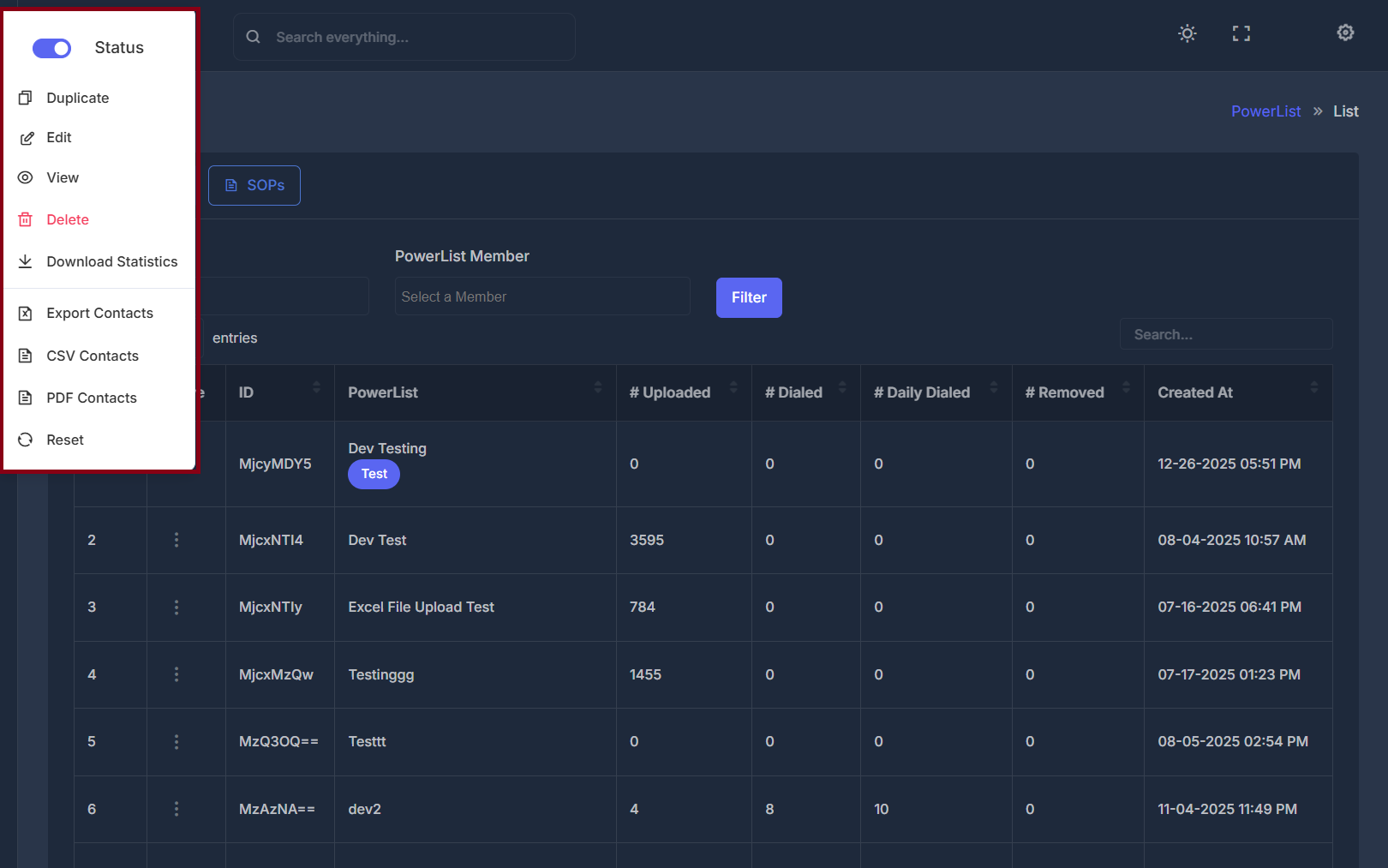
Action availability depends on role and list type. If visible, they usually mean:
- Status: turn list on/off for dialing.
- Duplicate: clones setup into a new list name; contacts are not copied.
- Edit: opens full configuration form.
- View: opens contacts view for that list.
- Delete: permanently removes list and related contacts after confirmation.
- Download Statistics: exports metrics and outcome summaries.
- Export Contacts: spreadsheet-friendly contacts export.
- CSV Contacts: CSV export format.
- PDF Contacts: report-style PDF export.
- Reset: resets dialing state of contacts to fresh/new without removing contacts.
📝 Create or edit a PowerList#
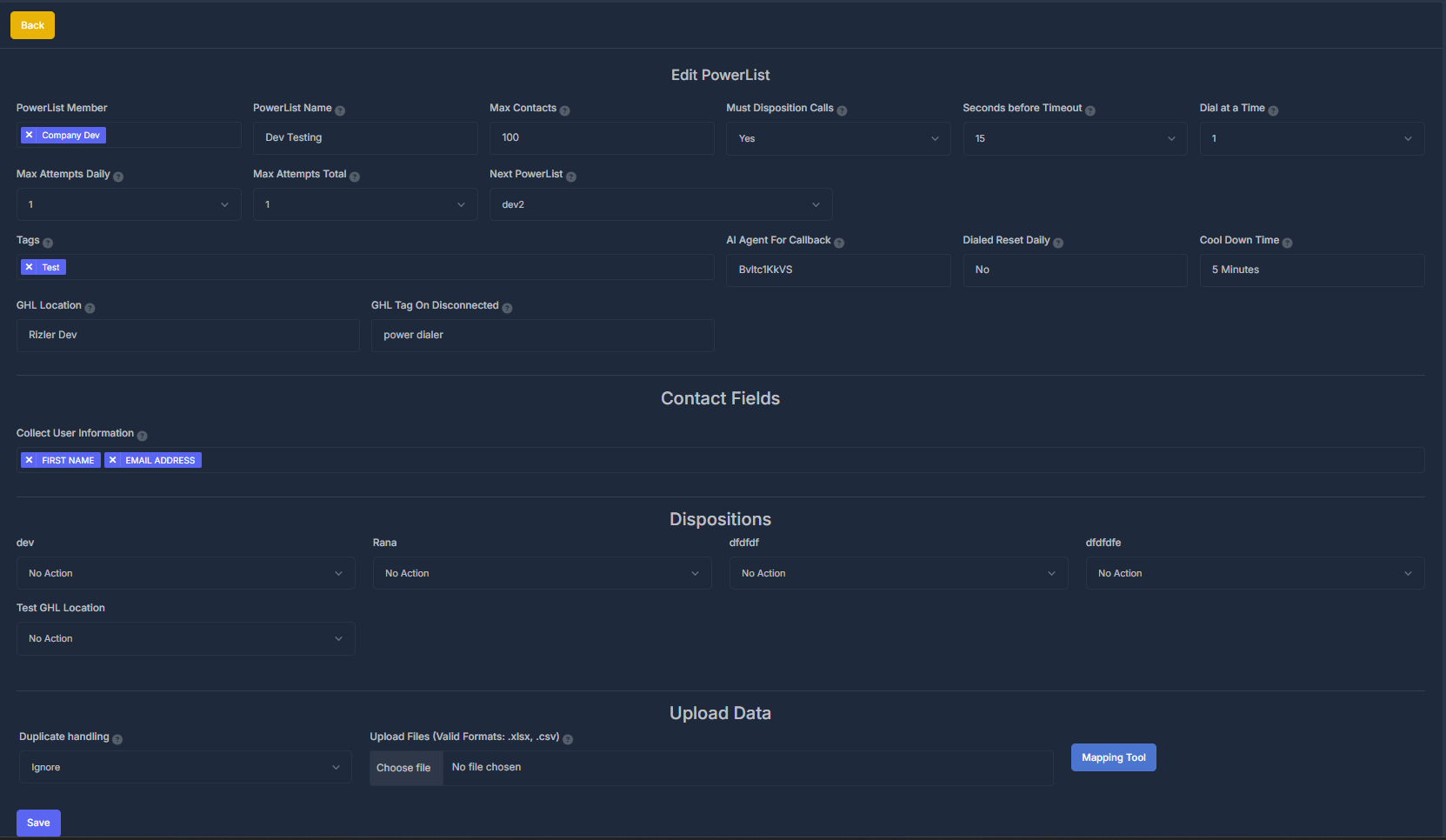
Use New PowerList or Edit from row menu.
Use Back to leave without saving, and Save to apply changes.
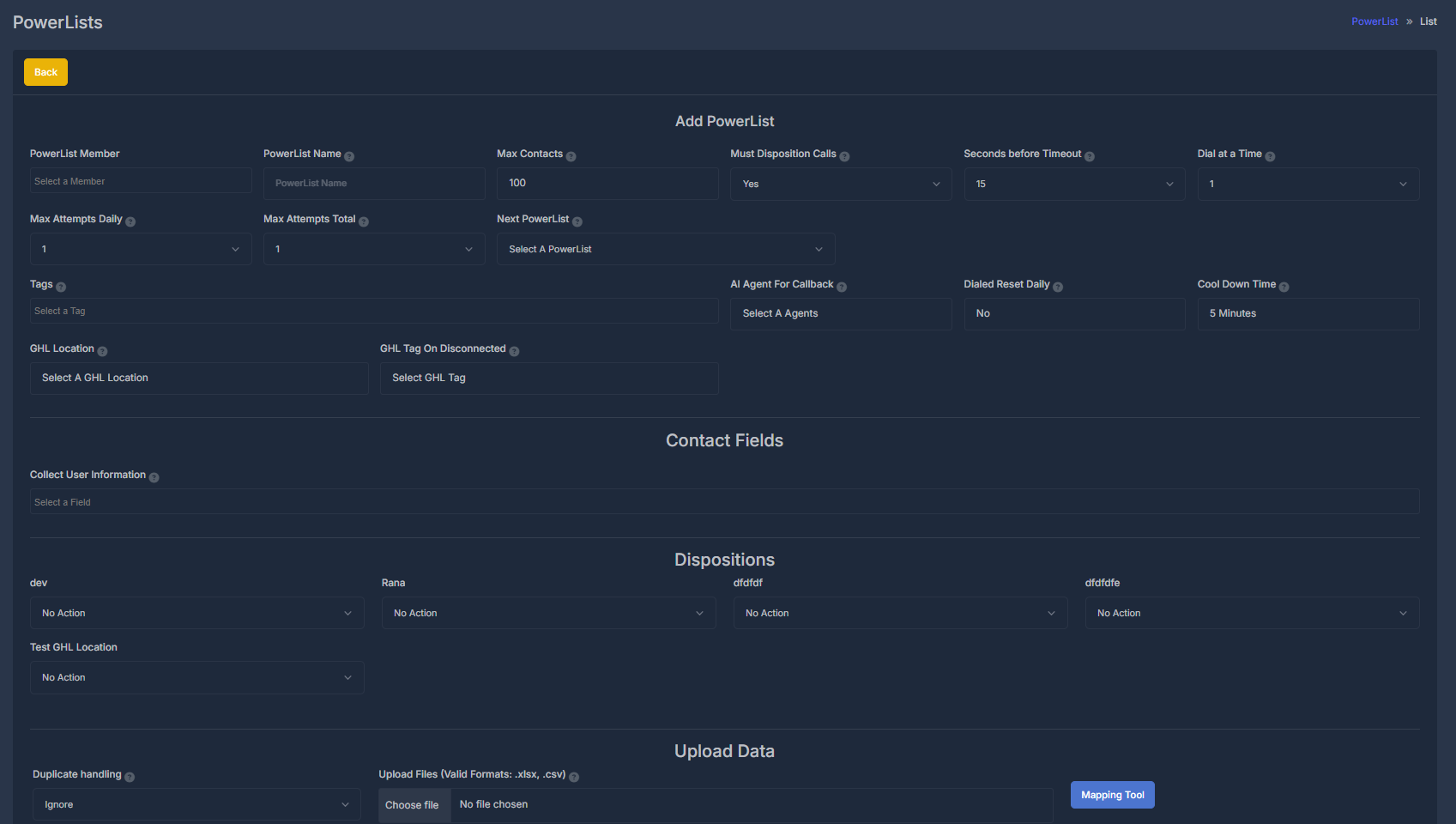
Many labels include help icons with short guidance on hover/focus.
👤 People and naming#
- PowerList Member: choose one or more members when field is shown.
- PowerList Name: unique, clear name for your company.
- Max Contacts: list capacity limit; system may enforce minimum.
📞 Calling behavior#
- Must Disposition Calls: enforce outcome selection before moving on.
- Seconds before Timeout: ring wait before unanswered handling.
- Dial at a Time: concurrent outbound calls for list.
- Max Attempts Daily: daily try limit per contact.
- Max Attempts Total: total try limit per contact.
- Next PowerList: optional next list handoff target.
🏷️ Organization and follow-up#
- Tags: labels for grouping/filtering lists later.
- AI Agent For Callback: optional callback assistant assignment.
- Dialed Reset Daily: resets daily counters at day boundary.
- Cool Down Time: wait period before retrying same contact.
🔗 CRM connection (GHL)#
- GHL Location: destination location for posting actions.
- GHL Tag On Disconnected: optional tag applied for disconnected outcomes.
📝 Contact fields (Collect User Information)#
Choose which data points are stored for contacts in this list (name/email/address/custom fields etc., based on your account).
🏁 Dispositions#
For each outcome label, choose one action:
- No Action
- Remove From List
- Post To GHL
- Post To GHL & Never Call
Choose actions based on your team workflow and compliance logic.
⬆️ Uploading contacts#
🔁 Duplicate handling mode#
- Ignore: skip duplicate rows.
- Overwrite: replace existing matching data.
- Merge: combine incoming and existing data.
📂 File selection#
- Upload supported spreadsheet/CSV file types shown in UI.
- Then open Mapping Tool.
🗺️ Mapping rules#
- Map file columns to internal fields.
- At least one mapped Phone Number field is required.
- Unused columns can be mapped to Ignore.
💾 Save and progress#
Click Save to store list settings and start import (if mapping is complete).
Progress area may show:
- job/reference id,
- current status,
- result summary.
Use Check Status to refresh progress, Refresh Table to update list counts, and Close when done.