📋 Overview#
Disposition is where you name and organize labels for how call results are recorded in your workspace. Each entry is one label (for example Interested, Callback, Not Interested).
You can decide:
- The name of the outcome label.
- Which roles can use that label.
- Which GHL location and notes field it ties to.
- How it looks (text and background colors).
- Whether it is the Didn't Answer default.
- Whether it is the general default option.
- Which Call Status it maps to.
Repeated for clarity: one disposition record = one outcome label + visibility + behavior + color + call-status link.
📑 Main list#
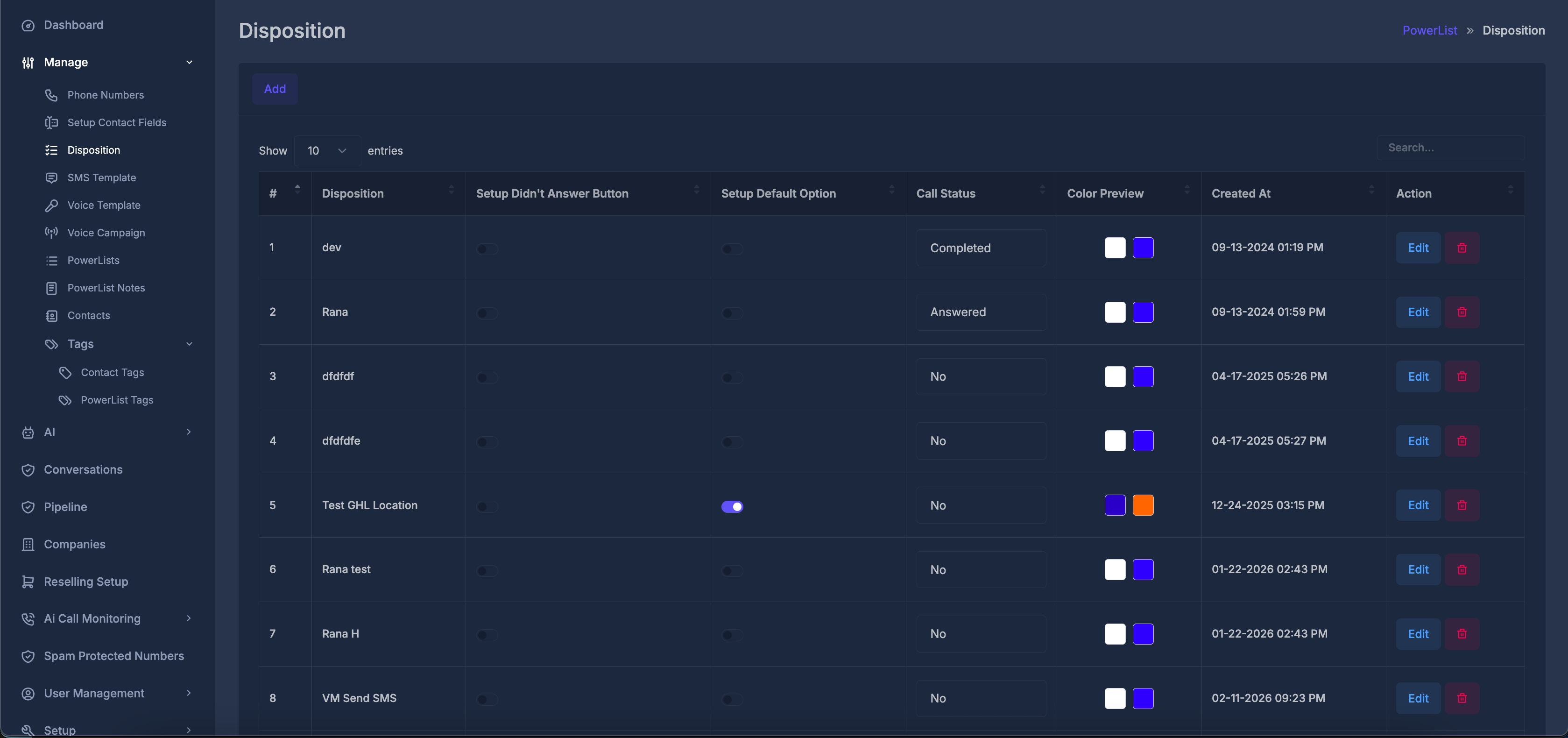
The main table shows all dispositions for your organization.

| Column | Meaning |
|---|---|
| # | Row number. |
| Disposition | Label name. This name must be unique in your organization. |
| Setup Didn't Answer Button | Toggle for the auto-choice used when a call is treated as “didn't answer.” Only one disposition can be active at a time. |
| Setup Default Option | Toggle for your organization's general default disposition. Only one can be active at a time. |
| Call Status | Status mapping for this disposition (for example No, Ringing, Answered, Busy, Cancelled, In Progress, Failed, AMD, Completed). |
| Color Preview | Shows saved text and background color styles for quick recognition. |
| Created At | Creation date/time for that disposition. |
| Action | Edit opens the form. Delete removes the row after confirmation. |
You can also search and move between pages using the list controls.
➕ Add a disposition#
- Click Add.
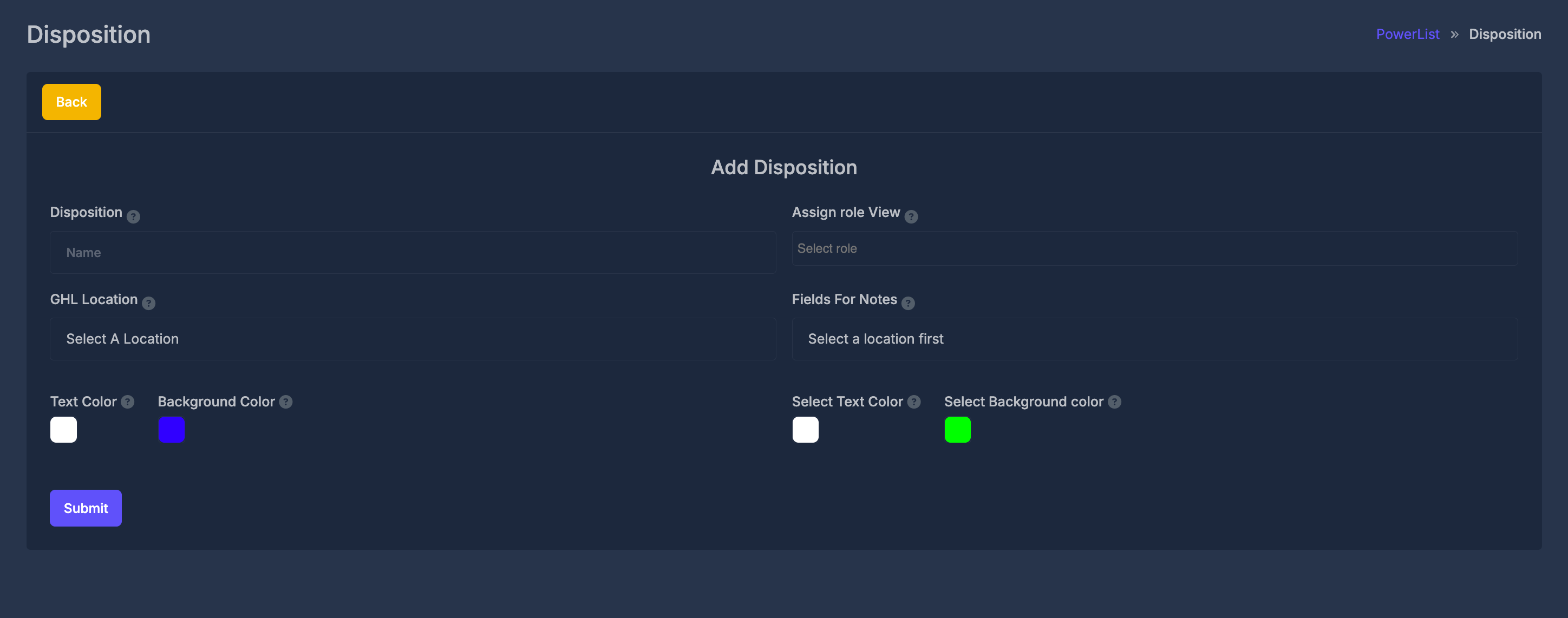
- The form opens with title Add Disposition.
- Fill required fields.
- Click Submit.
🏷️ Disposition Name#
Provide a unique, descriptive name for your outcome label.
- The name must not duplicate any existing disposition in your organization.
- If a duplicate is found, the form will display an error message and prevent saving.
👥 Role Access#
Select the user roles that should have access to this disposition.
- You can choose multiple roles.
- If role selection isn't visible for your account, your role will be assigned automatically in the background.
📍 GoHighLevel Location#
Select which GoHighLevel location this disposition belongs to.
- Only locations available within your organization/workspace are shown.
- The available options for notes fields are based on your currently selected location.
🗒️ Notes Field Selection
Once a location is chosen, the form will load the corresponding custom fields for that location.
- Pick a field where notes related to this disposition will be stored.
- If you change the selected location, the custom fields list will update—choose a notes field again if necessary.
- If no custom fields are present, the form will let you know that none are available.
🎨 Color Customization
You can configure the visual styles for both unselected (default) and selected states:
- Text color and Background color: how the disposition normally appears.
- Selected Text color and Selected Background color: how it looks when active or highlighted.
By default, normal colors are typically white text on blue, and selected colors are white text on green, but you can set these to any colors you prefer.
📝 Submit
Click Submit to save.
- On success: short confirmation appears and you return to the list.
- On failure: message stays on the form so you can fix the issue.
✏️ Editing a Disposition#
To make changes to an existing disposition:
- Find the disposition you want to update and click Edit.
- The Edit Disposition form will open, displaying the current settings (name, roles, location, notes field, and colors).
- Adjust any fields as needed.
- Click Submit to save your changes.
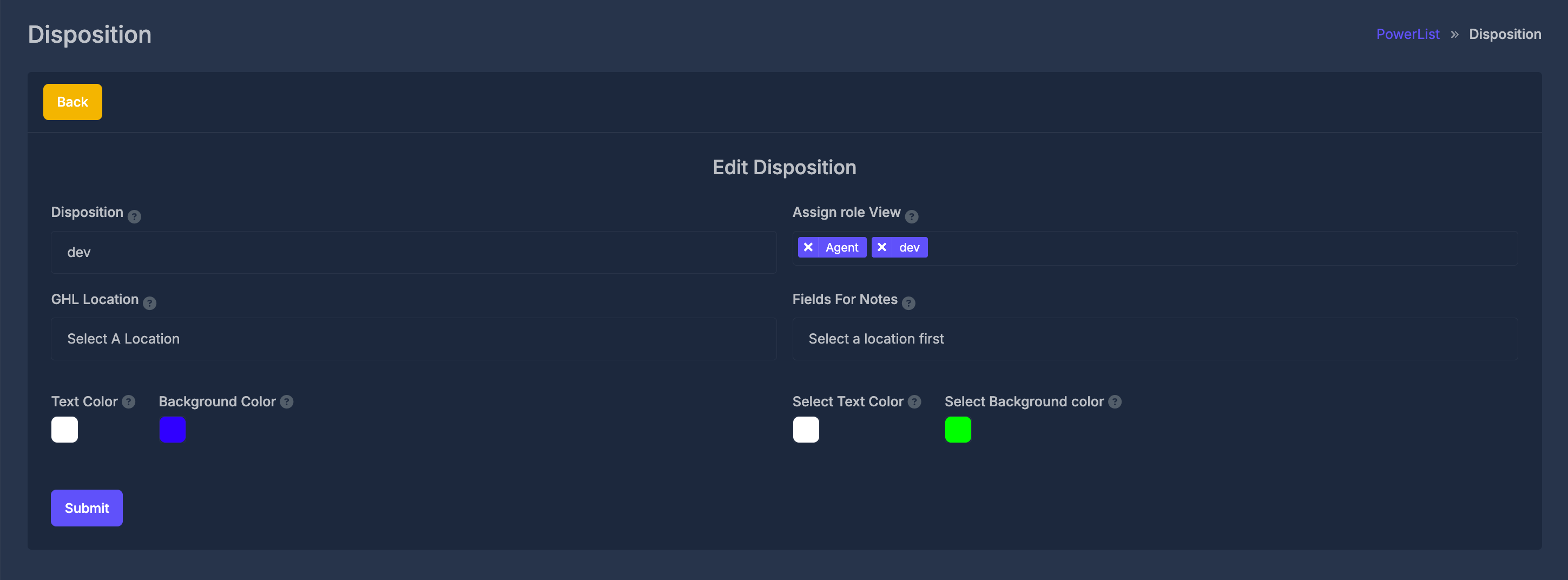
All editing is subject to the same rules as adding a disposition, including the requirement for a unique name.
Renaming a disposition can affect historical reports. If you need to keep reporting history unchanged, it may be better to create a new disposition rather than modifying the name of an existing one.
🕹️ Quick Toggles in the Disposition List#
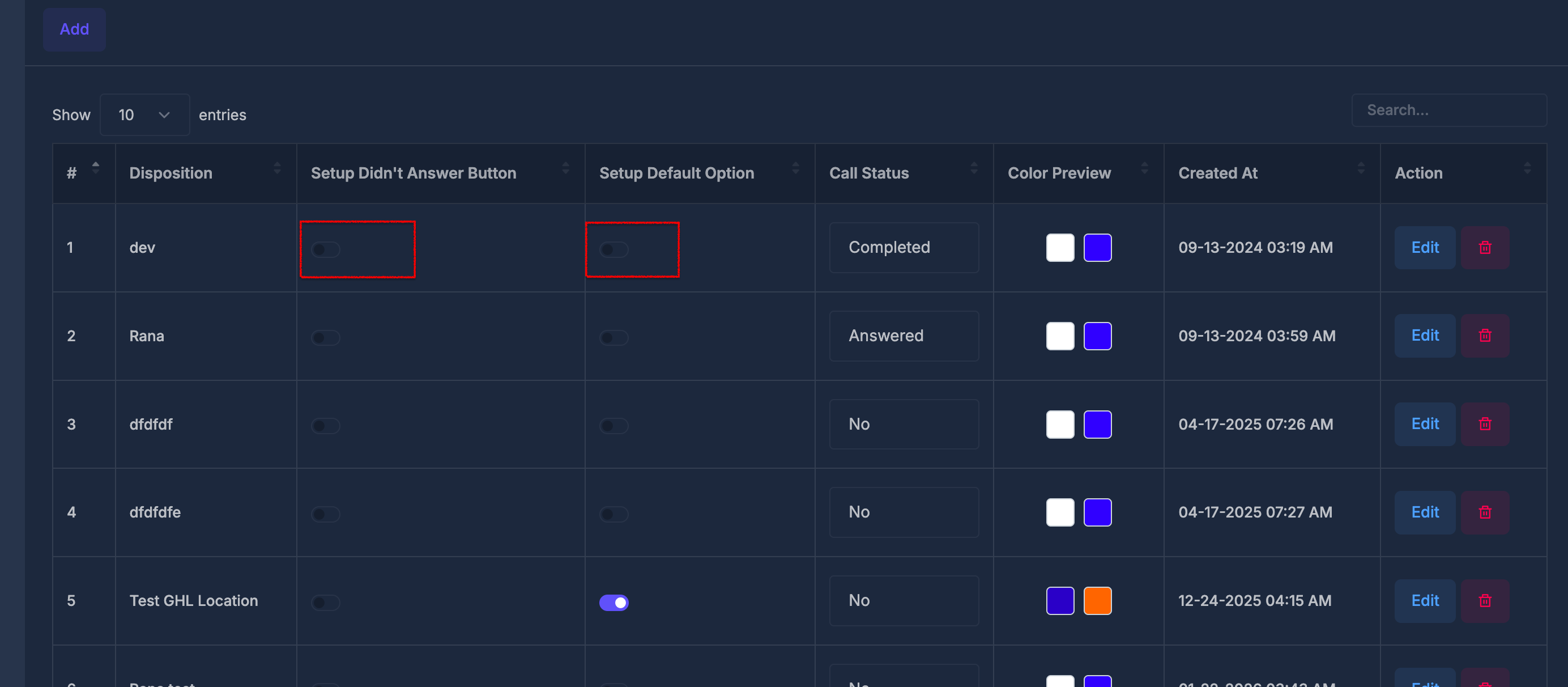
You can manage certain settings for each disposition directly from the list view, without needing to open the edit form:
❓ "Didn't Answer" Toggle#
- Use this switch to designate a disposition as your organization's "Didn't Answer" label.
- Only one disposition can hold this status at any time. Turning it on for another disposition will automatically turn it off for the previous one.
⭐ Default Disposition Toggle#
- Select the default disposition for your organization by enabling this toggle.
- Like the "Didn't Answer" setting, only one disposition can be set as the default; changing it will unset the previous default.
If an update fails to save, an alert will notify you, and the switch will return to its previous position.
☎️ Mapping Call Status#
Each disposition row has a Call Status dropdown to align that disposition with the relevant call outcome.
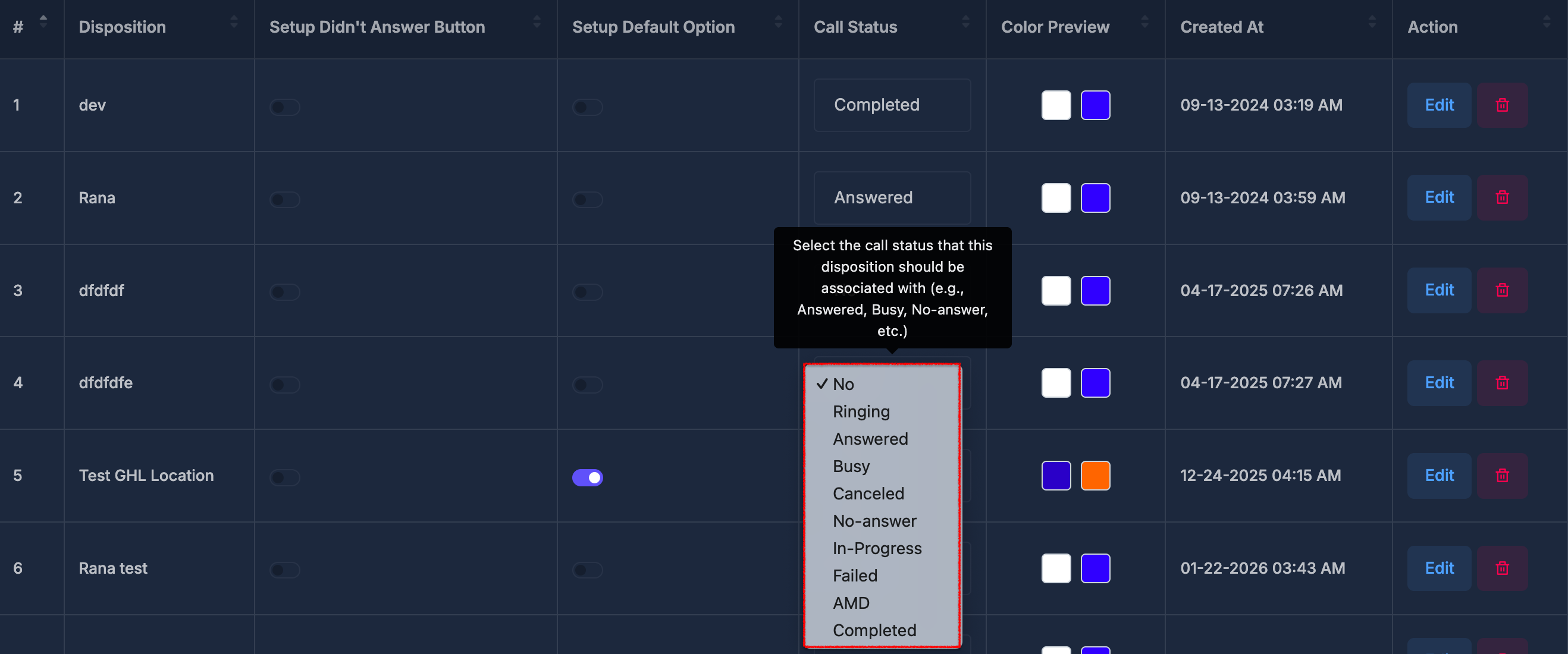
- Pick the desired call status from the dropdown.
- Your change is saved instantly.
- Proper mapping ensures dispositions are grouped accurately for status reporting.
🗑️ Delete a disposition#
Click Delete on a row and confirm when prompted.
- After confirmation, the record is removed.
- You return to the list with a success/failure message.
Deleted dispositions cannot be recovered. Confirm with your team before deleting labels used in reporting or workflows.