Open on the Clients table (and Open account in the wizard) switches you into that client's workspace.
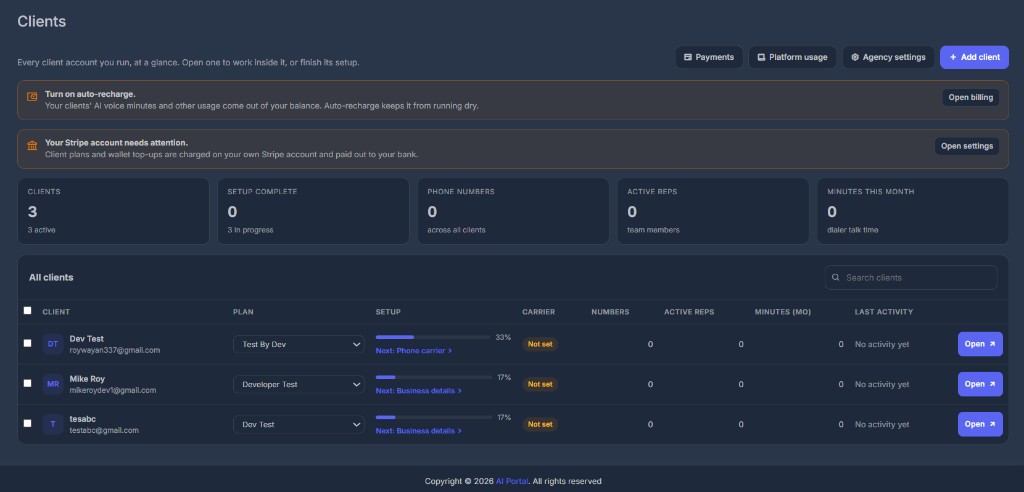
You are not logging in as them with their password. The product puts you inside their account so you can finish setup, buy numbers, add reps, or fix something. They keep their own login.
👁️ What you see inside#
A banner at the top of the page:
Viewing [client] as [your agency]
The button on the right of the banner takes you home (back to the agency).
The left sidebar changes to what that client would see. You do not keep the Agency Reseller menu while you are inside a client. That is on purpose: you are looking at their product, not yours.
Clients inherit your brand (logo, name, colors).
🔄 The account switcher#
Top-left of the header is the account switcher.
- While you are on the agency, it shows Agency and your agency name
- While you are inside a client, it shows Client account and that client's name
Click it to search accounts, jump to another client, or go Back to [agency].
Use the switcher when you are bouncing between three clients. Use Open on the Clients table when you are starting from the list.
🔐 What you can and cannot do#
You can do the work you would do in their account: numbers, team, integrations, dialer, AI, settings.
Money that belongs to the agency (Stripe payouts, saving a Twilio login, creating plans) stays on the agency pages.
Owner-only agency pages (Payments, Agency settings) are hidden from agency staff, even when they can open clients.
↩️ Coming back#
Any of these return you to the agency:
- The banner button
- The switcher's back row
- Agency Reseller → Clients after you are home
Closing the tab does not always clear the switch. Use the banner or the switcher so the next page load is your agency again.